
At Snackson we use video as an essential support for our microlearning courses. To create visual content we usually rely on professional software, but on many projects we also use online resources for editing and assembly.
Here is our top 9+1 tools for creating videos (and video presentations): what they offer, where they fall short, and a guide to prices.
Prices change often. The figures below are indicative as of October 2026. Before you purchase, confirm them on each vendor’s official website.
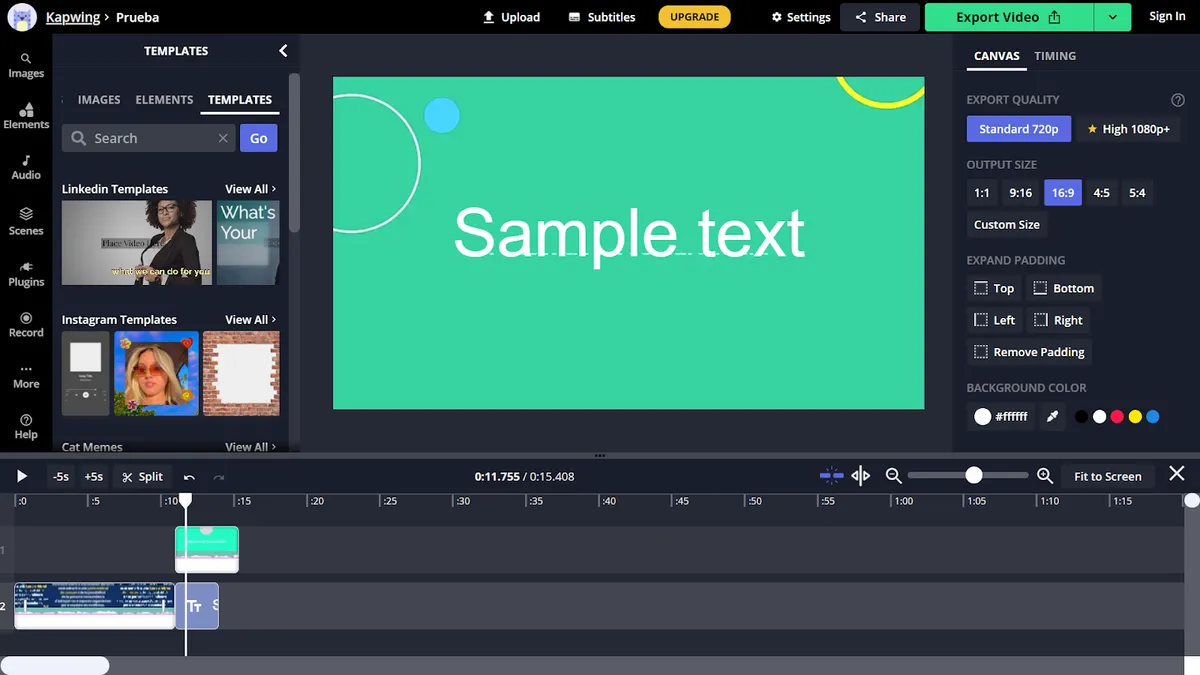
Kapwing
Kapwing is a browser video editor aimed at creators, marketing, and teams: subtitles, trims, resizing, dubbing, and AI.
Advantages
- Plenty of useful features already on the free plan; collaboration in the workspace.
- Your own typefaces, stock integrations (Pexels, Pixabay…), and AI credits (subtitles, TTS, dubbing).
- Long exports on paid plans (up to ~2 h on Pro).
Disadvantages
- The credit model means you have to watch how you use automatic subtitles, dubbing, or AI generators.
- The UI mixes layers and a timeline: the first few times it can be confusing.
Plans (indicative, per workspace member)
- Free — Very limited AI credits; limits on projects and exports.
- Pro — About $16/month (annual) or $24/month: ~1,000 credits/month, no watermark, more storage.
- Business — About $50/month (annual) or $64/month: ~4,000 credits/month, more storage and team features.
- Enterprise — Custom pricing.
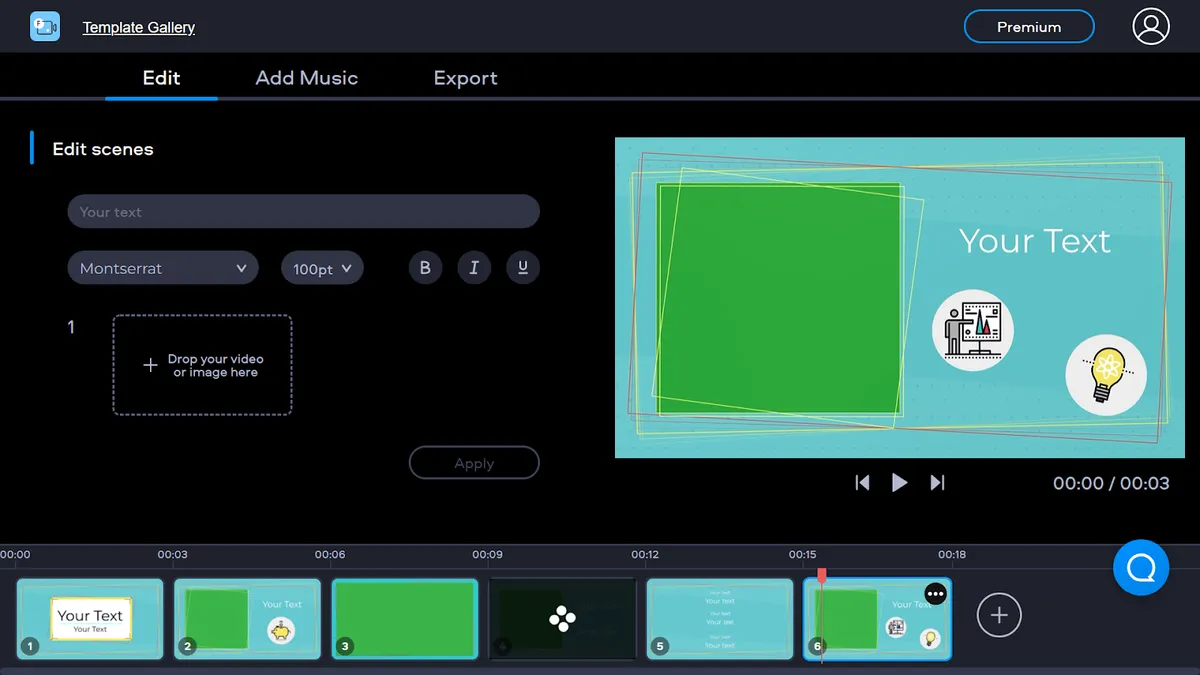
Fastreel
Fastreel (Movavi) is an online editor built around standalone tools and templates: trim, subtitles, convert, speed up, and so on, plus template-based projects.
Advantages
- Quick access to specific utilities without setting up a full project.
- Import from a phone (for example via QR) and templates by topic.
- 1080p export on free as well (with a watermark).
Disadvantages
- Free is limited; many premium templates and tools are paid.
- The workflow is fragmented: it is not a single “all-in-one” timeline like Kapwing or CapCut.
Plans (indicative)
- Free — 1080p with a watermark.
- Single Premium — About $9.95 for one premium export with no watermark.
- Unlimited Premium — About $19.95/month (with an annual discount): unlimited premium exports and access to paid templates and tools.
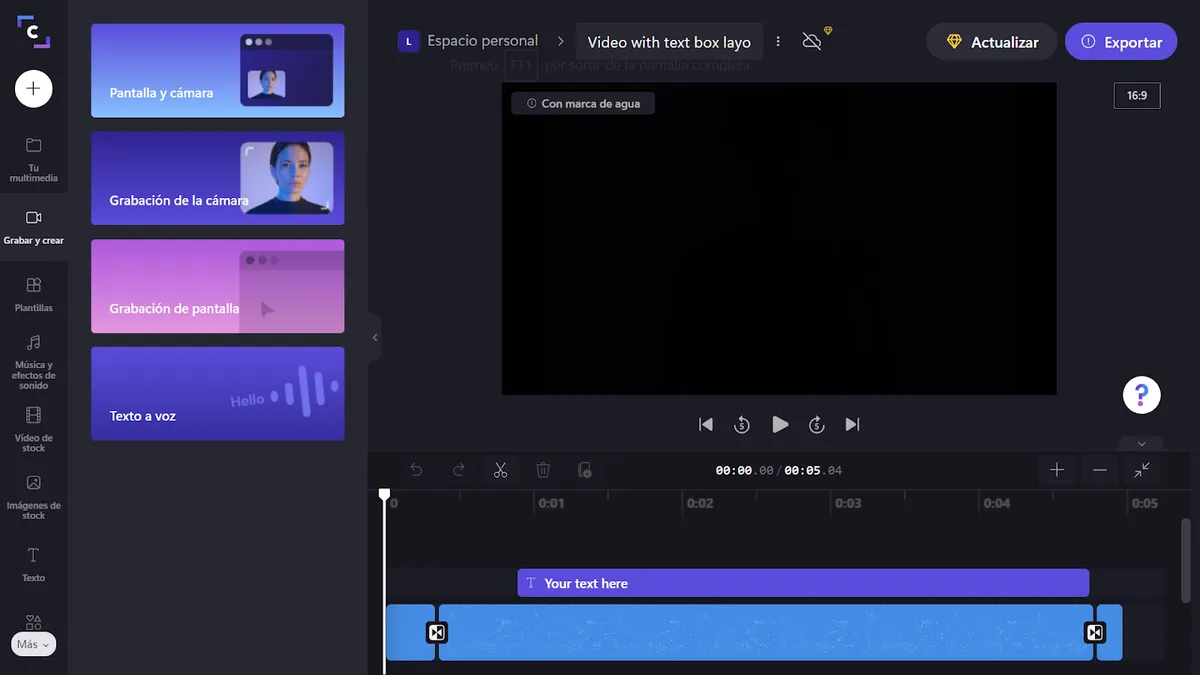
Clipchamp
Clipchamp (Microsoft) is a straightforward editor with stock, templates, screen and camera recording, and, increasingly, AI features. It fits very well if you already use Microsoft 365.
Advantages
- A usable free plan: export up to 1080p with no watermark, screen recording, and basic stock.
- Brand kit (logo, colors, fonts) on Premium / Microsoft 365.
- A natural fit with OneDrive and Microsoft accounts (personal or work).
Disadvantages
- Less fine control than a “pro” editor (Premiere, DaVinci).
- Premium features (4K, premium stock, a full brand kit) go through Microsoft 365 or Clipchamp Premium / work plans.
Plans (indicative)
- Free — Full basic editing; export up to 1080p; ~5 GB of cloud storage.
- Premium (personal) — Included in Microsoft 365 Personal/Family (or a Clipchamp Premium subscription): 4K, premium stock, brand kit.
- Work / school — Standard is included in many Microsoft 365 business/education plans; Premium as an add-on or via Copilot, depending on the license.
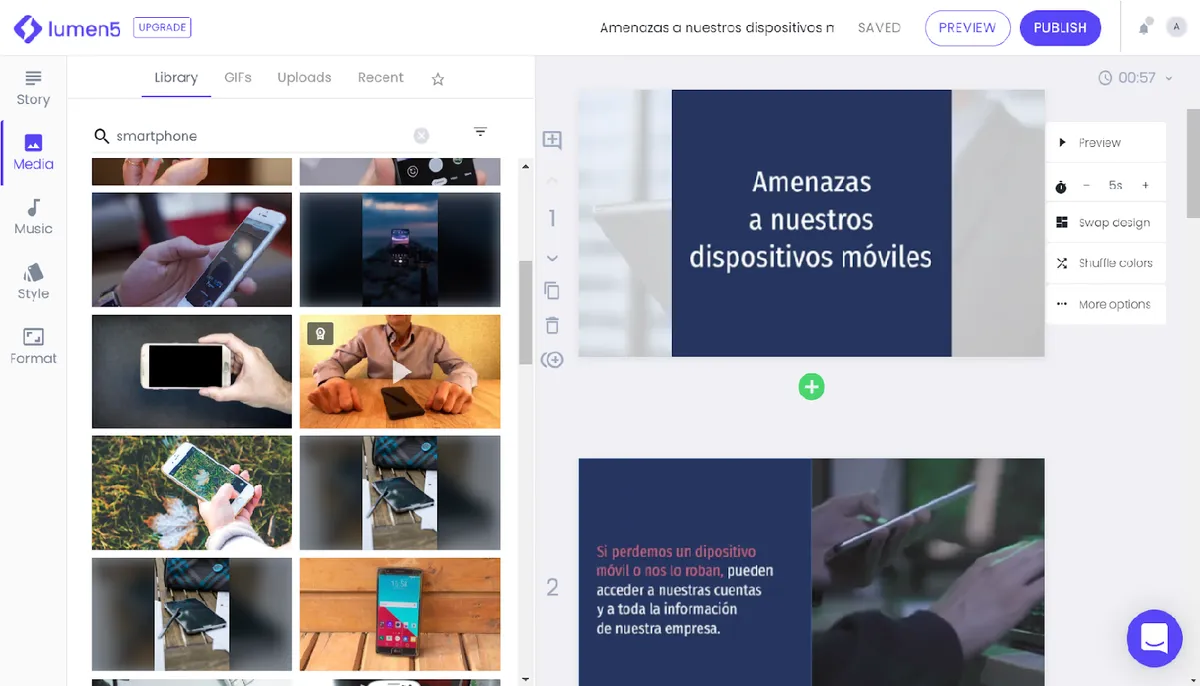
Lumen5
Lumen5 turns text or articles into videos with templates: ideal for training or brand videos built from a script.
Advantages
- From text to scenes, with titles and automatic stock.
- A large video and image library to illustrate each slide.
- Several templates and layouts per scene.
Disadvantages
- Automatic generation sometimes splits the script in the wrong places: you have to tidy it up.
- Free keeps Lumen5 branding (the outro) and limits on videos per month.
Plans (indicative, annual billing)
- Free — Few videos per month, Lumen5 branding, limited resolution.
- Basic — About $19/month: no branding, unlimited videos, ~720p.
- Starter — About $59/month: 1080p, more stock, brand kit, more minutes of AI voice.
- Pro — About $149/month: more AI voice, your own watermark, brand controls.
- Team — Custom pricing.
CapCut
CapCut replaces Boosted (Lightricks) on this list; that site is no longer active as a standalone product. CapCut (ByteDance) is now one of the most used options for short video on the web, desktop, and mobile.
Advantages
- A complete, free editor for most edits (cuts, text, effects, auto subtitles).
- Trending templates, auto captions, and plenty of AI features.
- Very quick for vertical formats and for microlearning or social pieces.
Disadvantages
- Some templates, effects, and advanced exports sit on CapCut Pro.
- Privacy and the account: weigh the platform’s policies if you work with sensitive company material.
Plans (indicative)
- Free — Powerful editing at no cost; some limits on exports and templates.
- Pro — A monthly or annual subscription (usually around $8–10/month, depending on region and offers): premium templates and effects, more storage, and AI features.
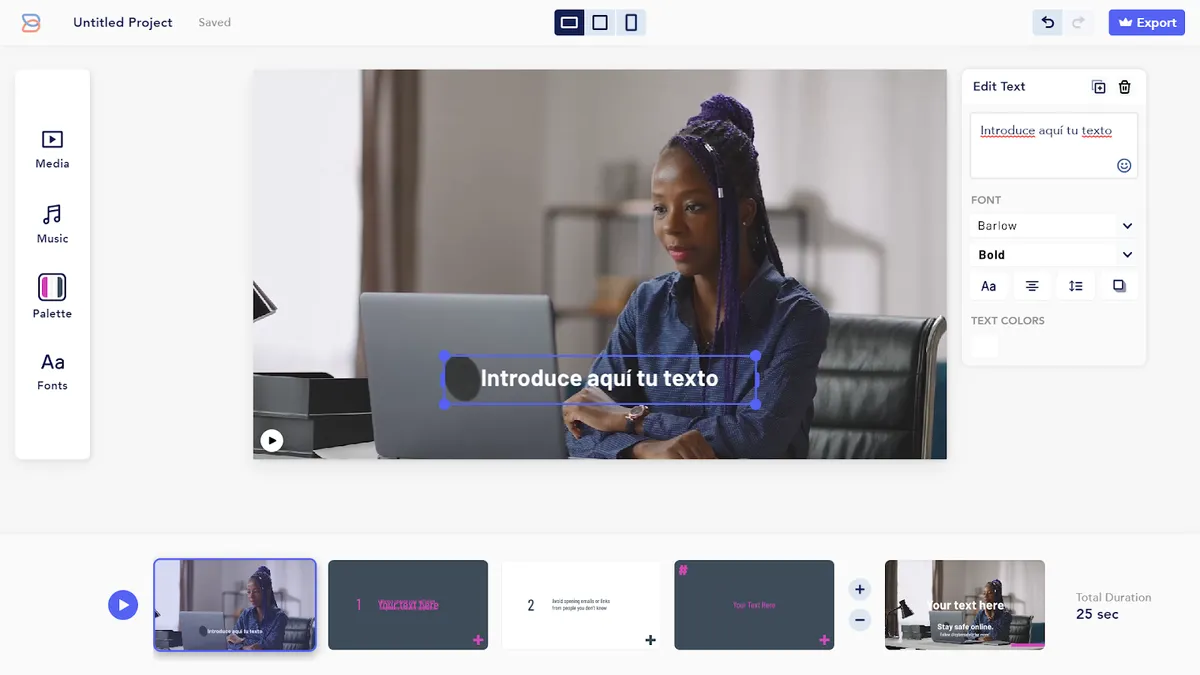
Wideo
Wideo creates videos quickly from templates: search by field, text to speech (including Spanish and Catalan), and graphic libraries.
Advantages
- TTS with voices in Spanish and Catalan.
- Templates suggest what text to put in each block.
- You can upload your own music and narration to the project.
Disadvantages
- Most of the better templates are on paid plans.
- The timeline can be confusing at first (transitions versus duration).
Plans (indicative)
- Free — Videos of ~1 min, ~10 templates, with branding.
- Basic — About $59/month or ~$19/month annual: ~1.5 min, 10 downloads/month, more templates.
- Pro — About $99/month or ~$39/month annual: unlimited downloads, up to ~10 min.
- Pro+ — About $199/month or ~$79/month annual: up to ~30 min and extra seats.
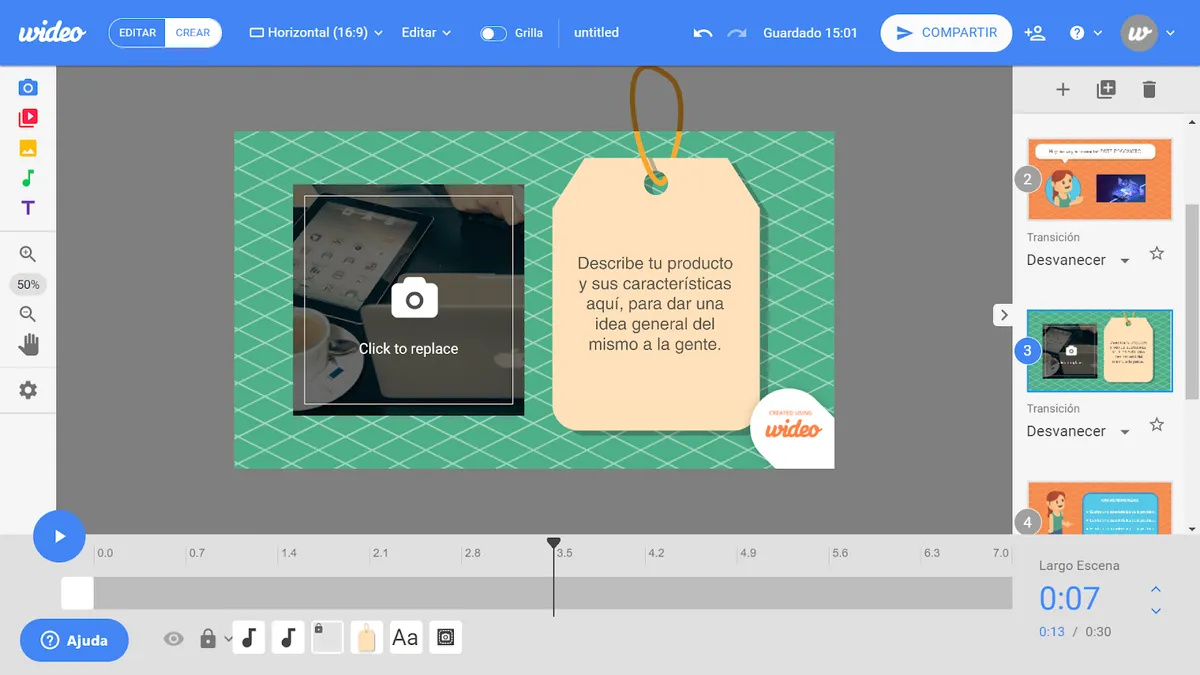
Vimeo
Vimeo combines professional hosting (no ads) with tools for creation, review, and collaboration. Useful when the video lives in a company or training player of your own.
Advantages
- A customizable player, privacy (password, unlisted), and analytics.
- Screen and camera recording, and review workflows on current plans.
- Streaming quality up to 4K on Vimeo hosting.
Disadvantages
- The main value is the hosting; the editor does not replace CapCut or Kapwing for complex edits.
- Paid plans climb quickly if you need a team, live, or a lot of storage.
Plans (indicative, annual billing)
- Free — Limited hosting, no ads on the player.
- Starter — About $12/month: ~2 TB of storage, privacy, and basic collaboration.
- Standard — About $25/month: more users, player branding, lead capture.
- Advanced — About $75/month: live streaming and events.
- Enterprise — Custom pricing (advanced AI, SSO, and so on).
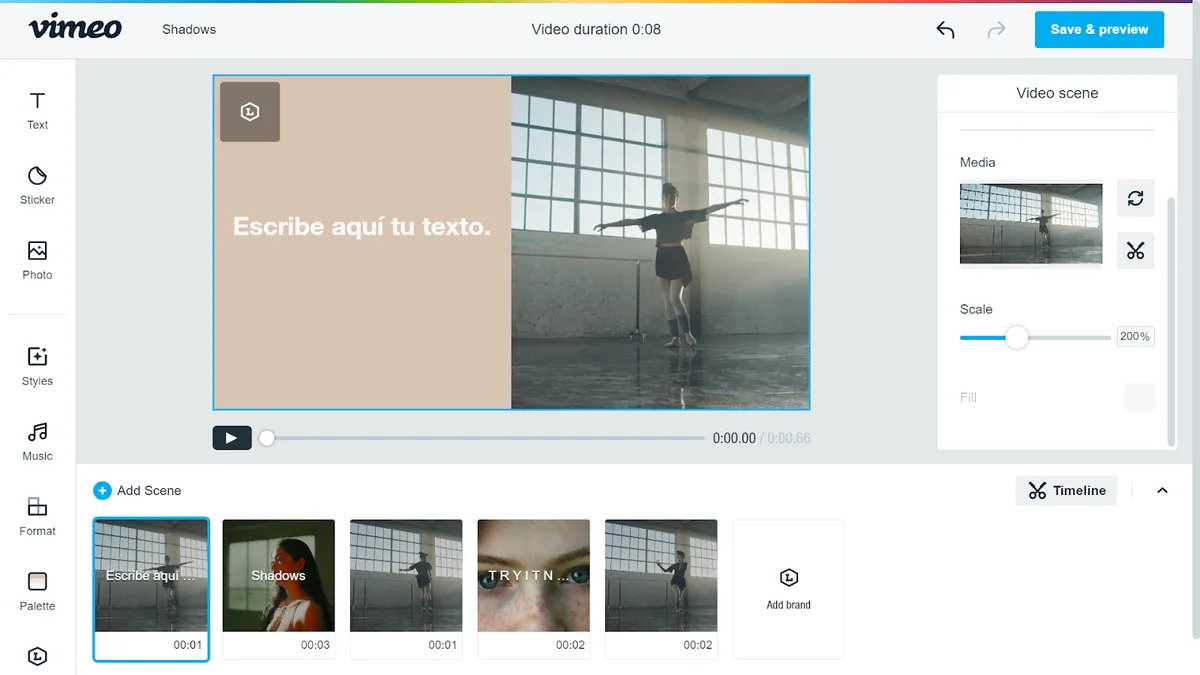
Renderforest
Renderforest is a template suite: explainer videos, intros, logos, mockups, and websites. Ideal when you want a fast result without an advanced timeline.
Advantages
- Highly polished presets for explainers and social.
- A simple flow: you pick a template, change the text and media, and export.
- You can pay per individual product if you do not want a subscription.
Disadvantages
- Less freedom than a frame-by-frame editor.
- Free comes with a watermark and limited quality.
Plans (indicative)
- Free — Exports with a watermark / low resolution.
- Lite — About $9–15/month: 720p, basic AI credits.
- Pro — About $19–39/month: Full HD 1080p, more stock and credits.
- Business — About $39–59/month: 4K, a reseller license, more storage.
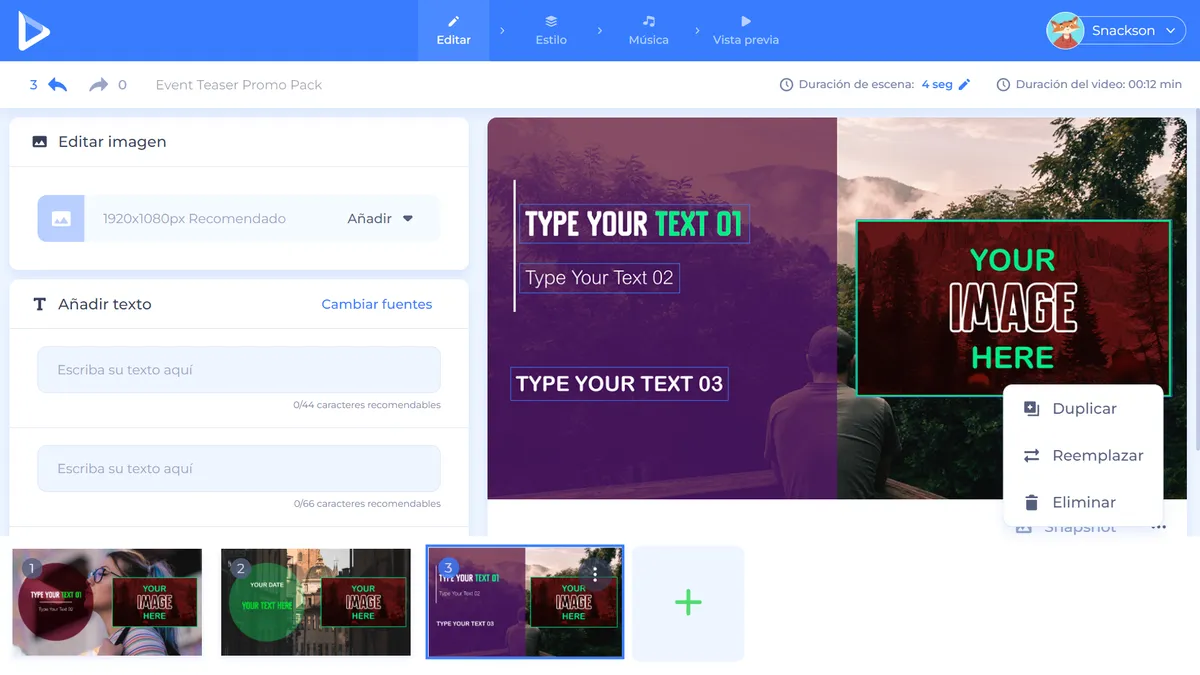
Wave.video
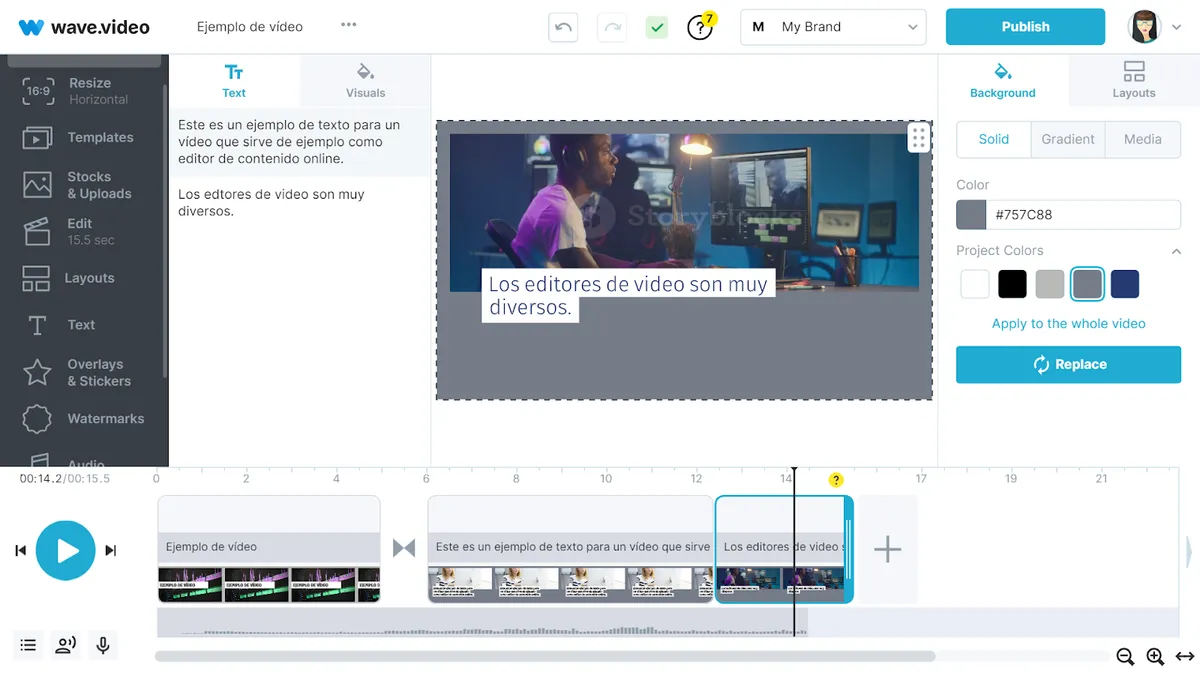
Wave.video mixes an editor, stock, subtitles, text to speech, and hosting/marketing (embeds, a video landing page, live).
Advantages
- Text to video, captions, and a brand kit (several kits on higher plans).
- Broad stock on paid plans; a range of typefaces and alphabets.
- Useful if, besides editing, you want to publish and measure.
Disadvantages
- Free sharply limits editable duration (~15 s) and leaves a watermark.
- If you scale, you need to check prices and hosting limits (embeds, traffic).
Plans (indicative, typical annual billing)
- Free — Short edits, a watermark, basic stock.
- Streamer — About $16/month: a basic editor, videos and GIFs up to ~5 min.
- Creator — About $24/month: up to ~30 min, captions, TTS, more stock.
- Business — About $48/month: up to ~2 h / 60 fps, expanded hosting, collaboration.
Bonus: YouTube Studio
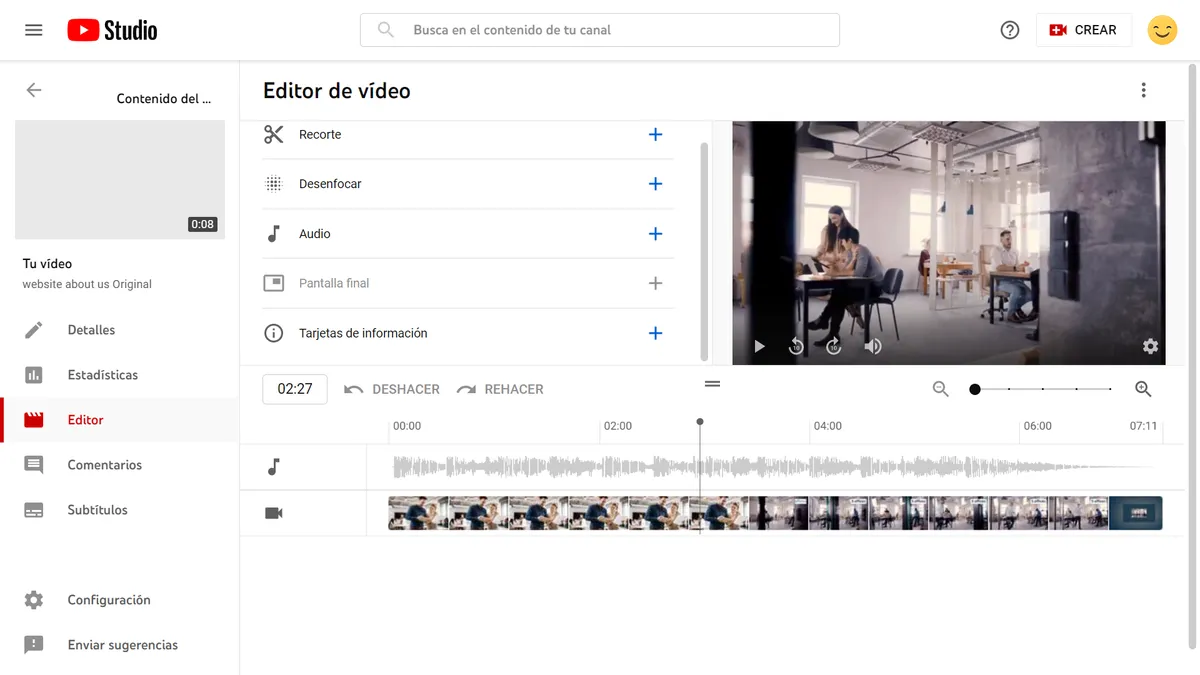
YouTube Studio (and YouTube’s creation tools) does not replace a full editor, but it gives you trims, audio, automatic subtitles, and analytics at no cost, once the video is on YouTube (or you publish it there).
Advantages
- Free; auto subtitles in many languages; an audio stock library.
- Retention and engagement analytics built into the platform.
- Useful for polishing pieces you have already published, or for running a training channel.
Disadvantages
- It is not built for elaborate edits or for offline corporate branding.
- The workflow assumes publishing (or at least a flow) on YouTube.
Plans: a single “plan”: free, tied to your Google/YouTube account.
In conclusion
Almost all of these tools offer a free plan or a trial. In practice, for microlearning:
- Quick edits and subtitles: Kapwing or CapCut.
- Text → branded video: Lumen5 or Wave.video.
- Microsoft ecosystem: Clipchamp.
- Professional hosting with no ads: Vimeo.
- Explainer templates: Renderforest or Wideo.
- One-off utilities: Fastreel.
- Polish and channel analytics: YouTube Studio.
The tool is only part of the job: what matters is short messages, a clear pace, and a style consistent with your brand. If you want to see how we build video into microlearning pathways, talk to us.
If you are looking for character animation (Vyond, Animaker…), also see our guide to tools for creating animated videos.