In recent years, Canva has become the go-to design tool for the general public. You could say it has democratized design, so anyone can create quality pieces and express their creativity.
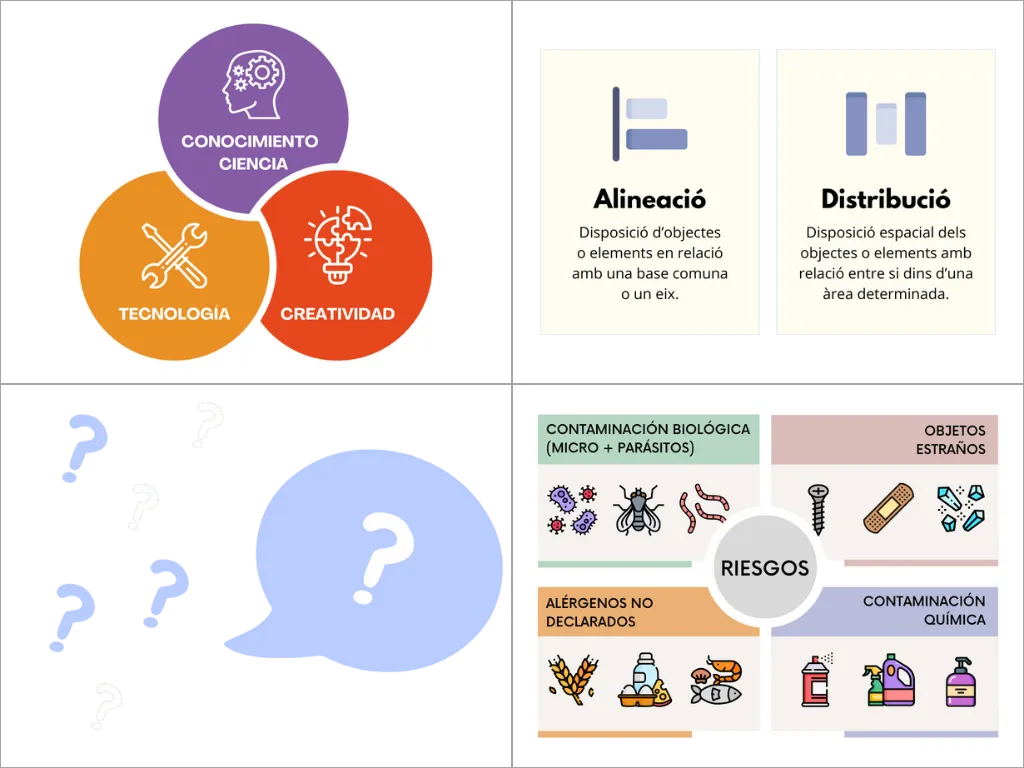
You can create charts and mind maps like the ones we made for the microcourses “Techniques to boost your creativity” and “Food handling: ensuring food quality and safety”. You can also easily create graphics to accompany the content of our microcourses.
Beyond these features, Canva lets you create audiovisual content, such as promotional videos and tutorials. To see this more clearly, explore the microcourses “Take your presentations to the next level” and “Excel tricks”, where you will find many concrete examples of videos made with this tool:
💡 Keep in mind that these are only a few examples of what you can do with Canva. There is much more you can create, from social media posts, GIFs, and presentation slides to more technical pieces such as UML diagrams or statistical charts.
If you already knew all of this and want to go further with the tool, here are 9 tips so you can see its full potential and get strong results. We will cover the features of both the free version and Canva Pro, so you have a complete picture of everything it can do.
1. Use keyboard shortcuts
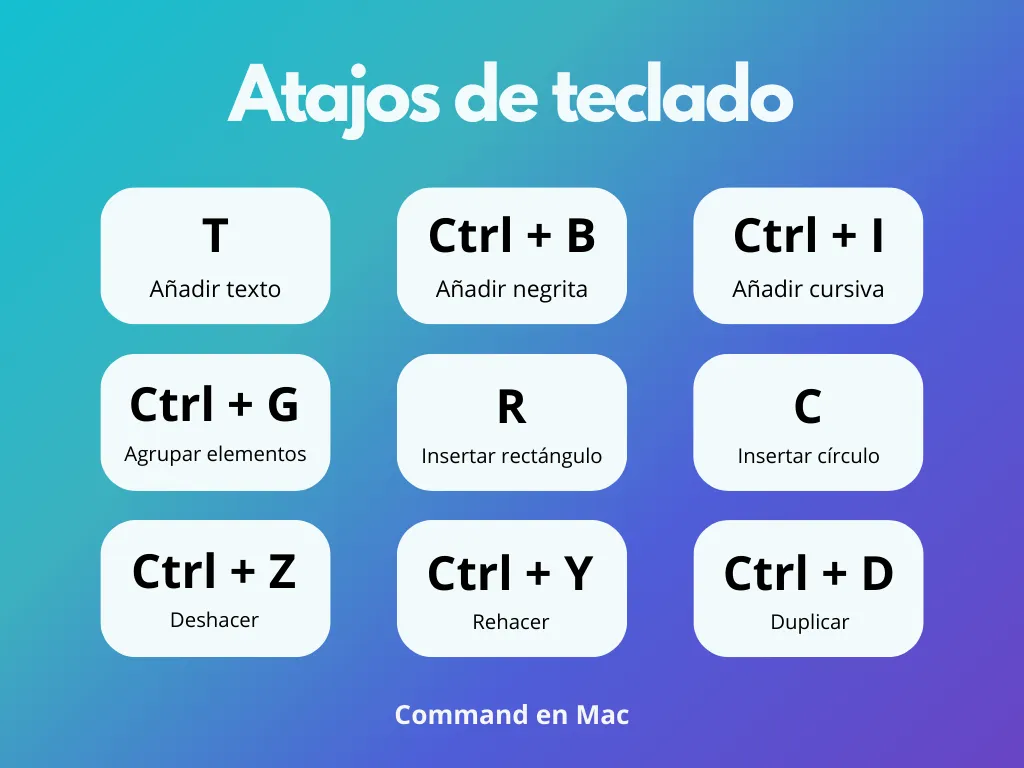
Keyboard shortcuts make the design process faster and easier, and Canva is no exception: it includes several very useful ones. Some are the same shortcuts you already use in other tools, so do not worry, they will not take long to learn. Here are just a few of them:
Discover more keyboard shortcuts in Keyboard shortcuts - Canva Help Center.
2. Create your brand identity
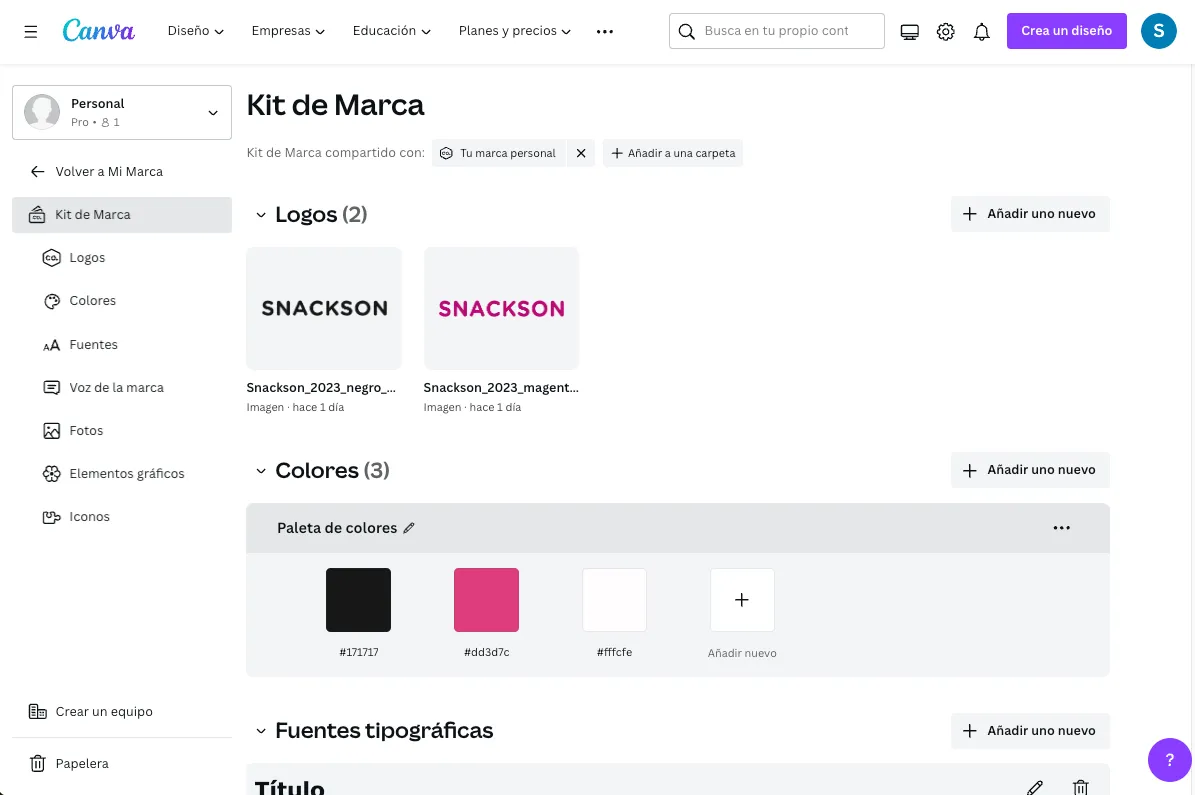
With Canva you can save your color palettes, logos, and fonts. This is very useful when you work on different designs that need to stay visually consistent.Simply select Brand Kit in the left-hand menu on the home page. Once you are in, you can add your logos and fonts according to their hierarchy and create color palettes. On Pro, you can also add images, graphic elements, icons, and a description of your brand voice. This paid version also lets you use multiple Brand Kits.
3. Edit your photos
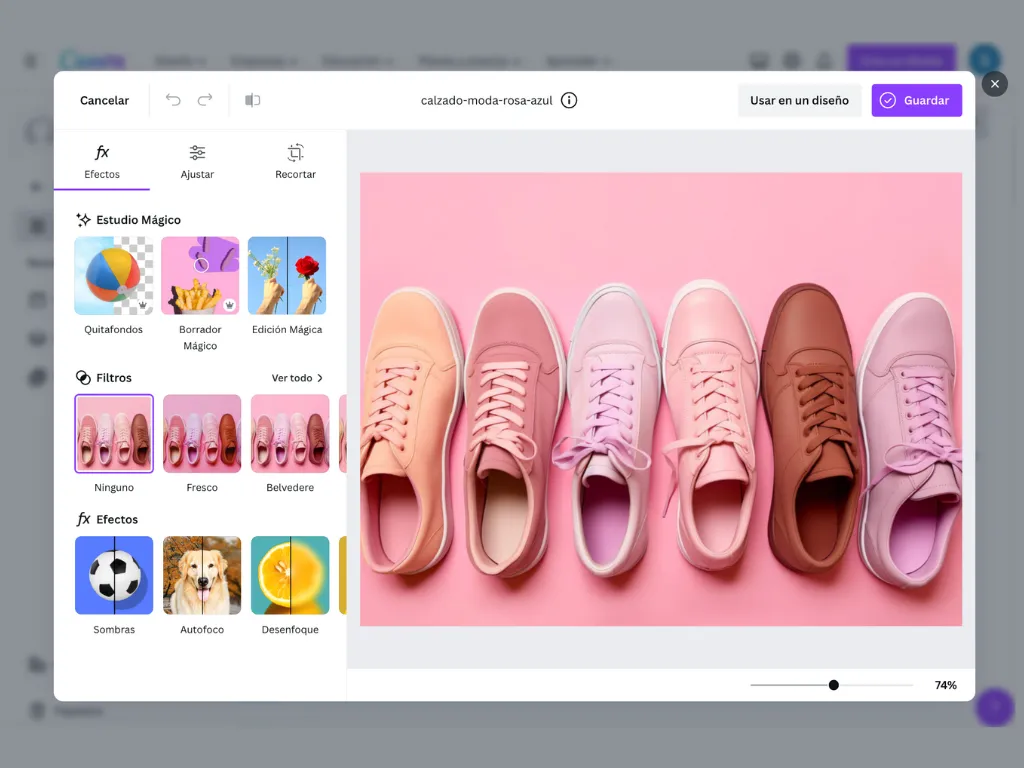
You can also edit your photos in Canva very easily. On Canva Free, you have a range of filters and effects, and you can adjust the light, shadows, color, or texture of your images. On Pro, on top of that, you can use AI features: for example, remove the background of an image, erase specific elements, or expand the image.Keep reading to discover more of Canva’s AI tools. ⬇︎
4. Use Magic Studio
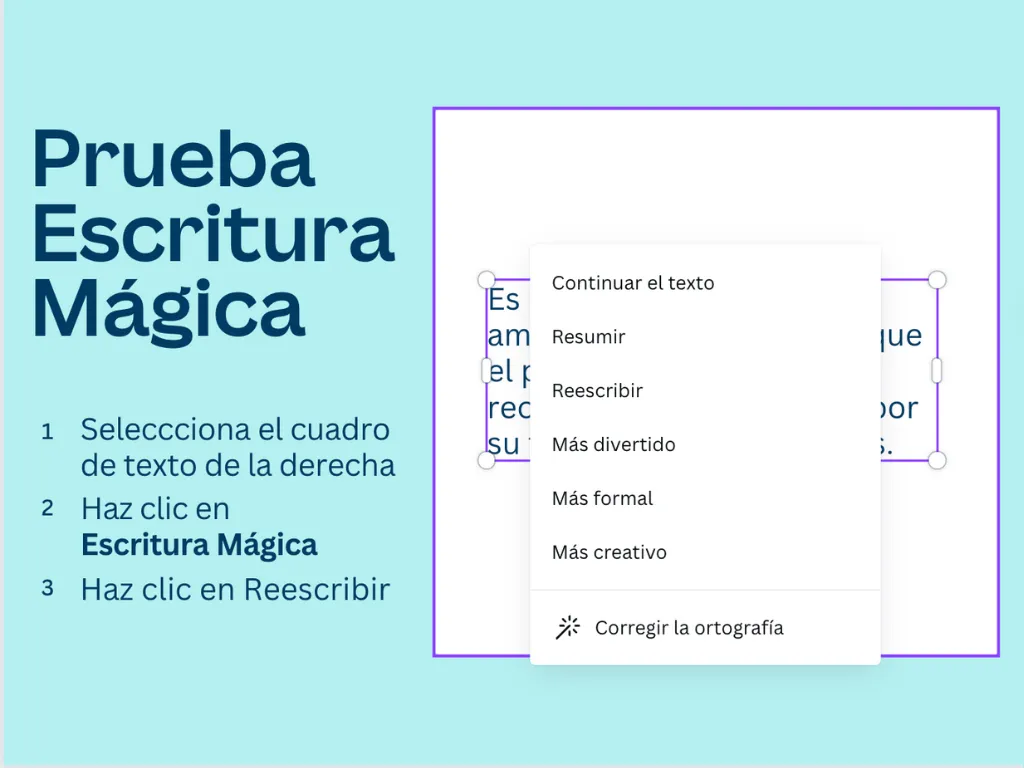
Artificial intelligence has recently boomed across many sectors, and design is one of them. Canva has added new artificial intelligence features that can help you through the whole design process:- Magic Write: a writing assistant that helps you create written content, from changing the tone of a paragraph so it sounds more formal or more fun, to summarizing a passage or fixing its spelling.
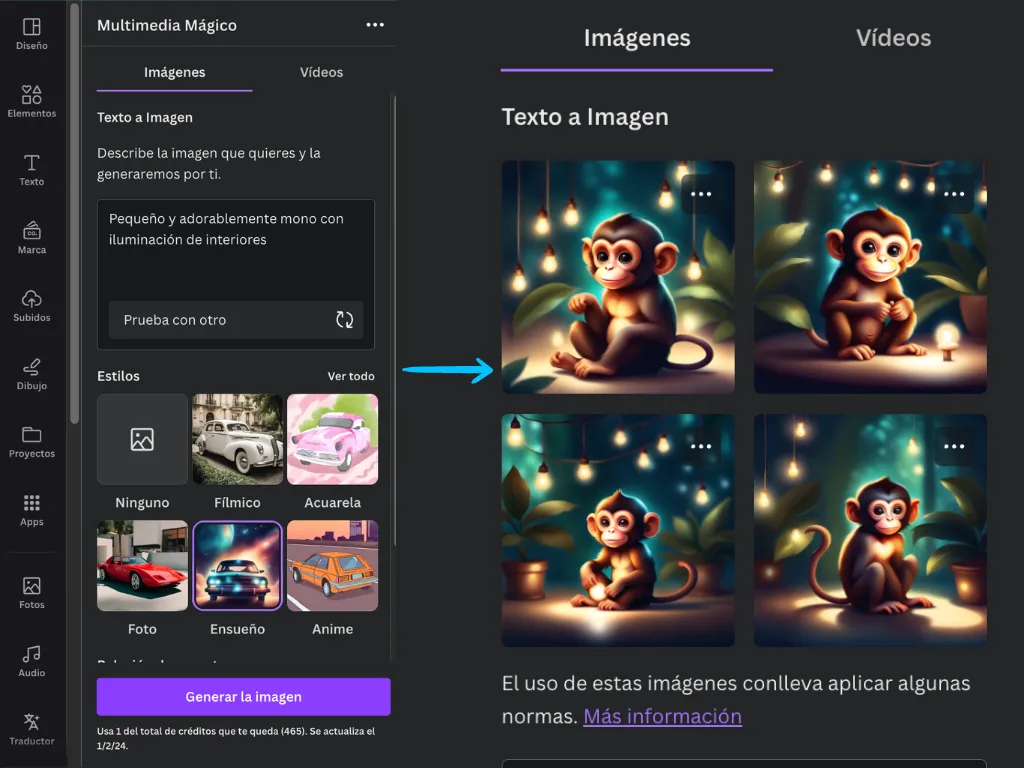
- Magic Media: generates images and videos in seconds from text. On Canva Free you only get 50 uses of Text to Image and 5 for videos. On Pro, you can use it much more widely.
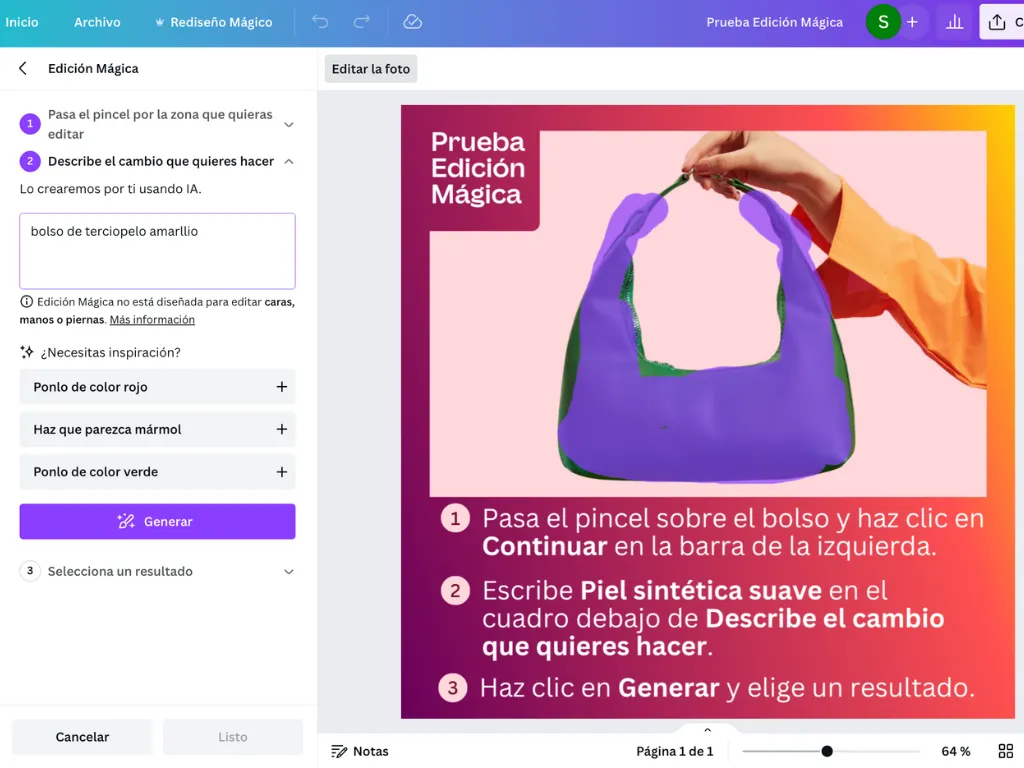
- Magic Edit: add, replace, or edit images from a short prompt.
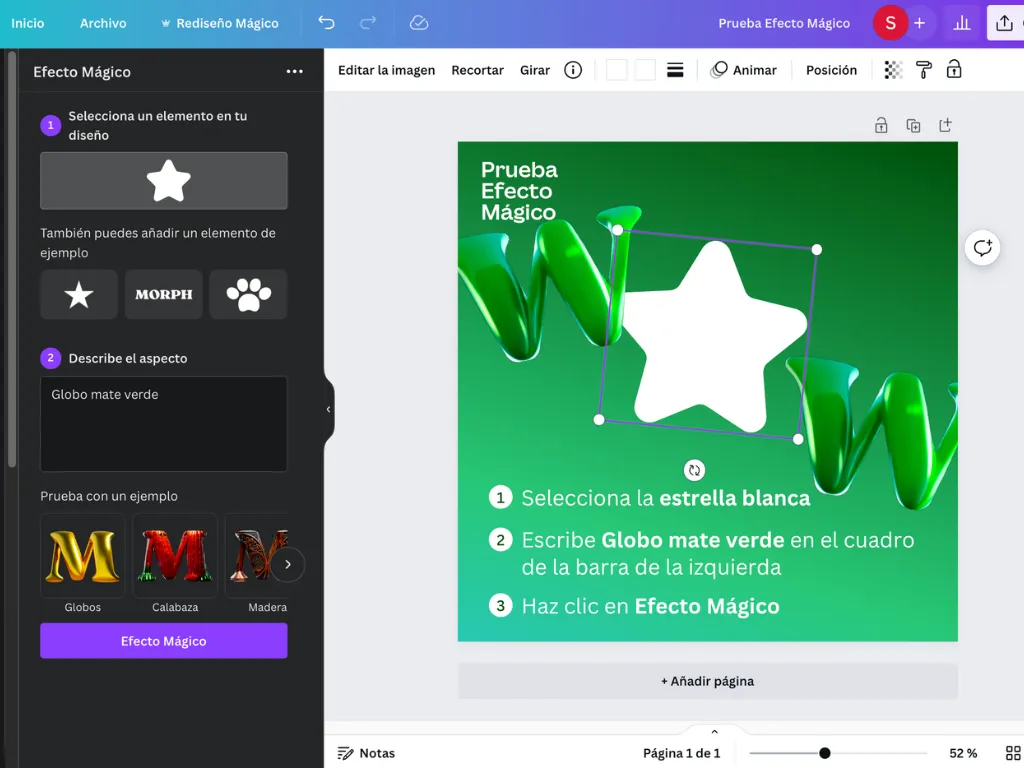
- Magic Morph: transform text or shapes however you like, simply by describing the result you want.
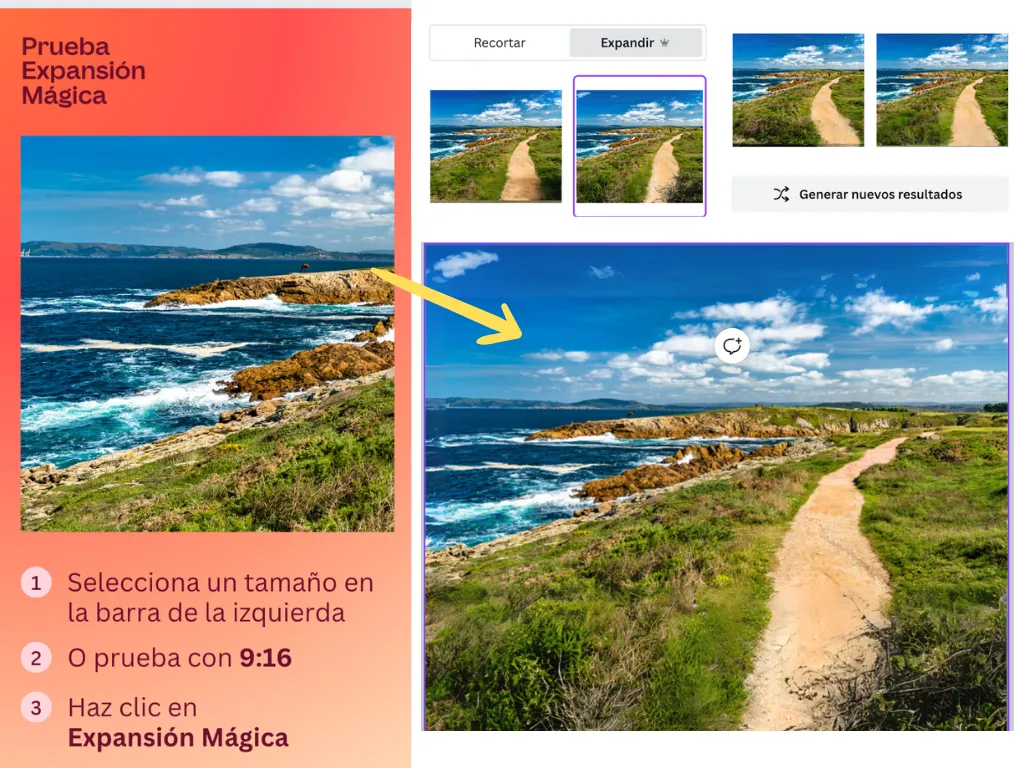
- Magic Expand: generates and extends the background of an image.
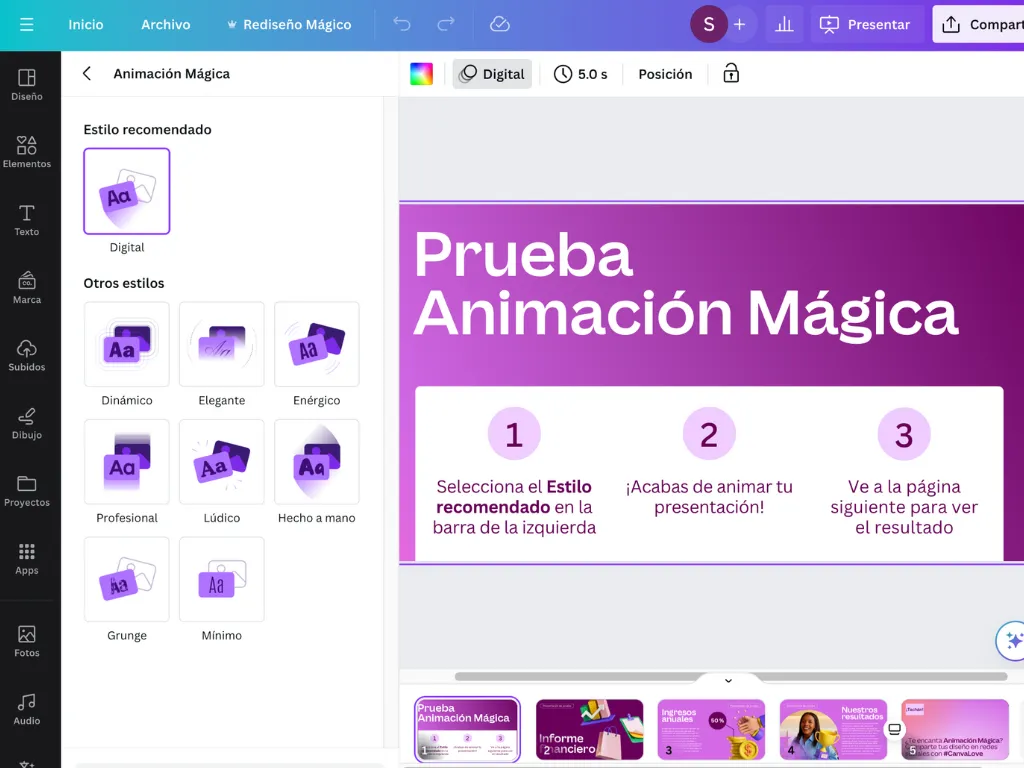
- Magic Animate: recommends an animation style you can apply to the whole design. Ideal for presentations and videos.
If you want to go further into what artificial intelligence can do, we recommend the article Perceptions of AI, where we reflect on the impact of this technology today, and specifically in the e-learning sector.
5. Add apps
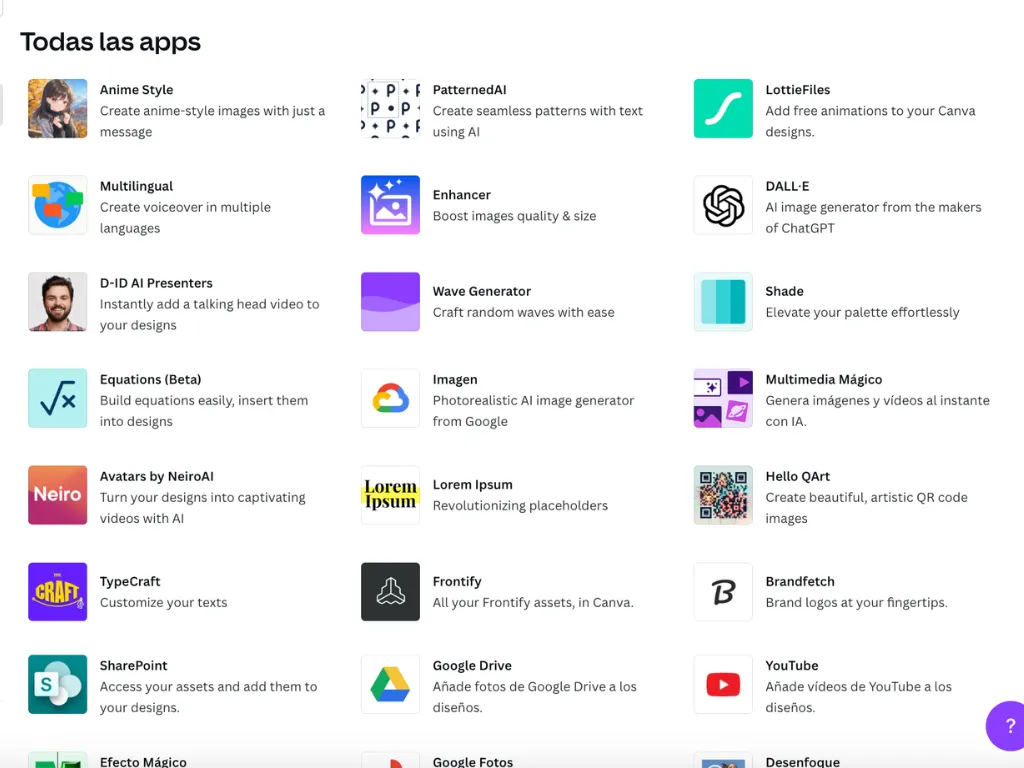
One of Canva's great strengths is that you can add features from other platforms. To use them, you need to connect them to your account. Go to the Apps tab in the left-hand menu on the home page. From there you can discover every available app and add the ones you want to your account. You can also add them while you are inside a project. From the side menu, under Apps, you can search for and connect the apps you want. They are added to your side menu so you can use them easily.Here are some of the apps:
- With AI: AI Voice, Melody Muse, Enhancer, Magic Media, and more.
- Productivity: Google Drive, Google Photos, SharePoint, and more.
- Design essentials: Lorem Ipsum, Giphy, Pexels, Shade, and more.
- Sharing and publishing: Metricool, Later, Slack, LinkedIn, and more.
6. Find elements with the same creator or style
Canva has a large library of graphic elements. Sometimes, when you find a resource you like for its style, its colors, or something else, you want to find others in the same style or on the same theme. There is a very easy way to do it: hover over the element, click the three-dot icon, and then select "See similar content".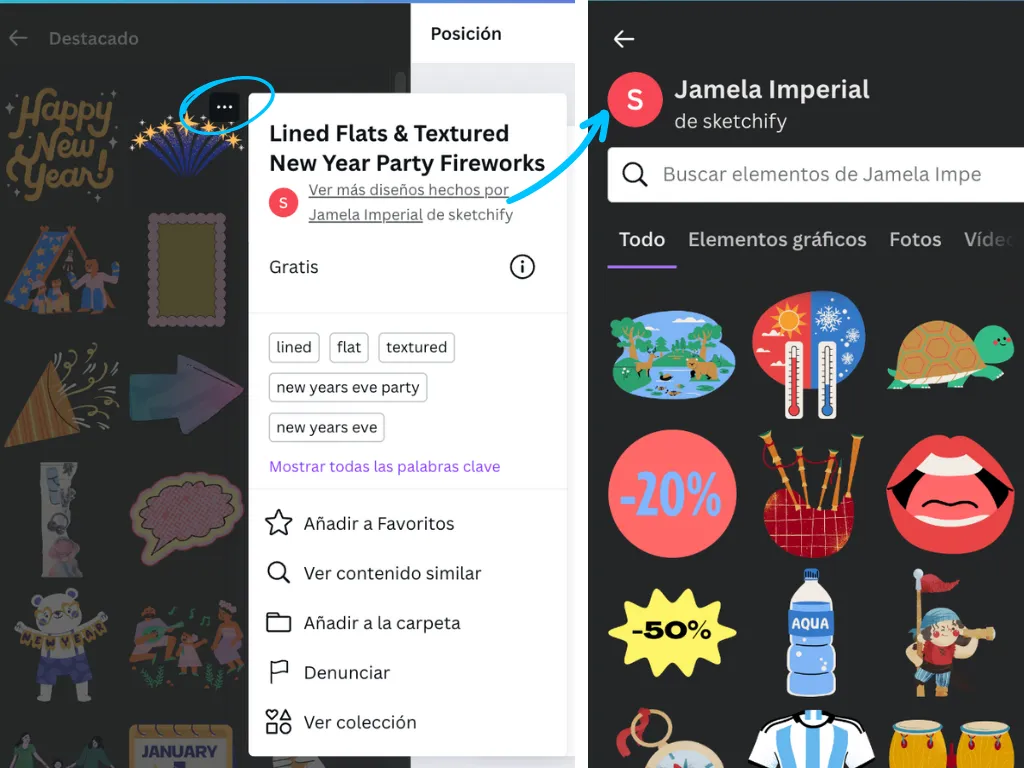
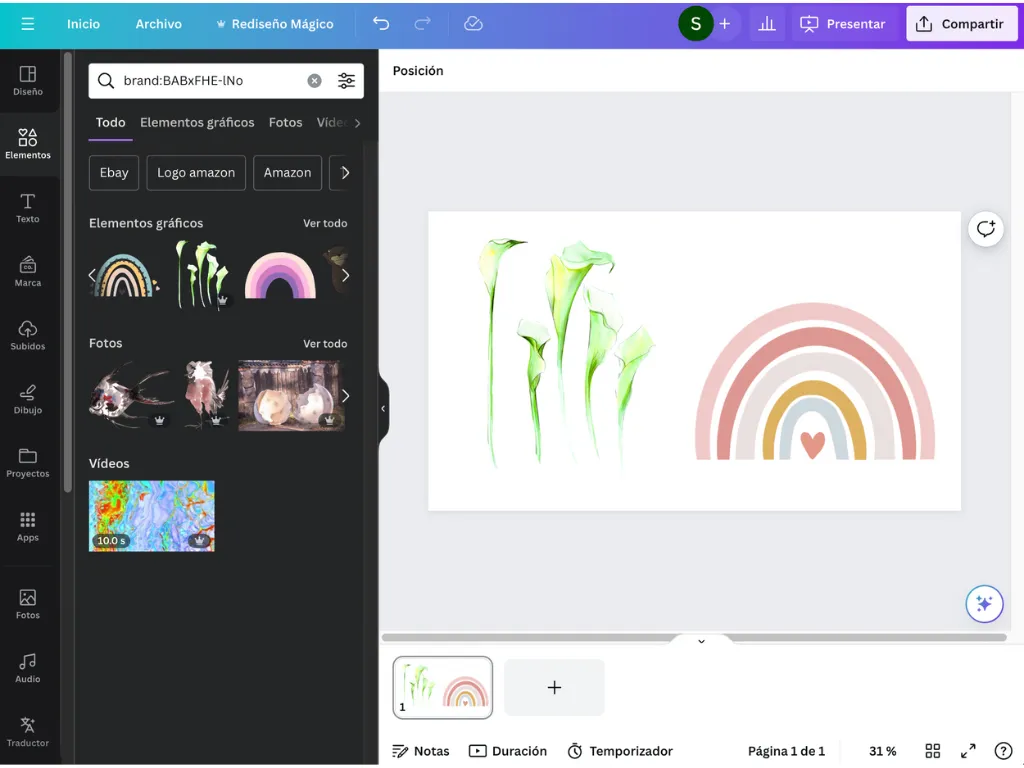
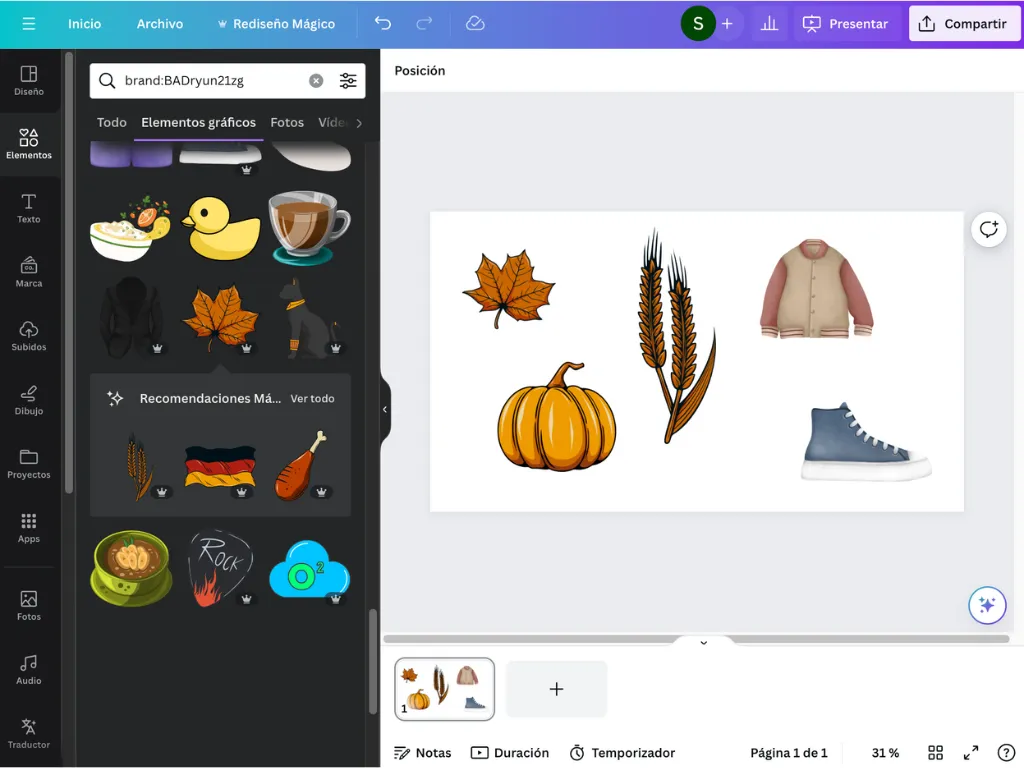
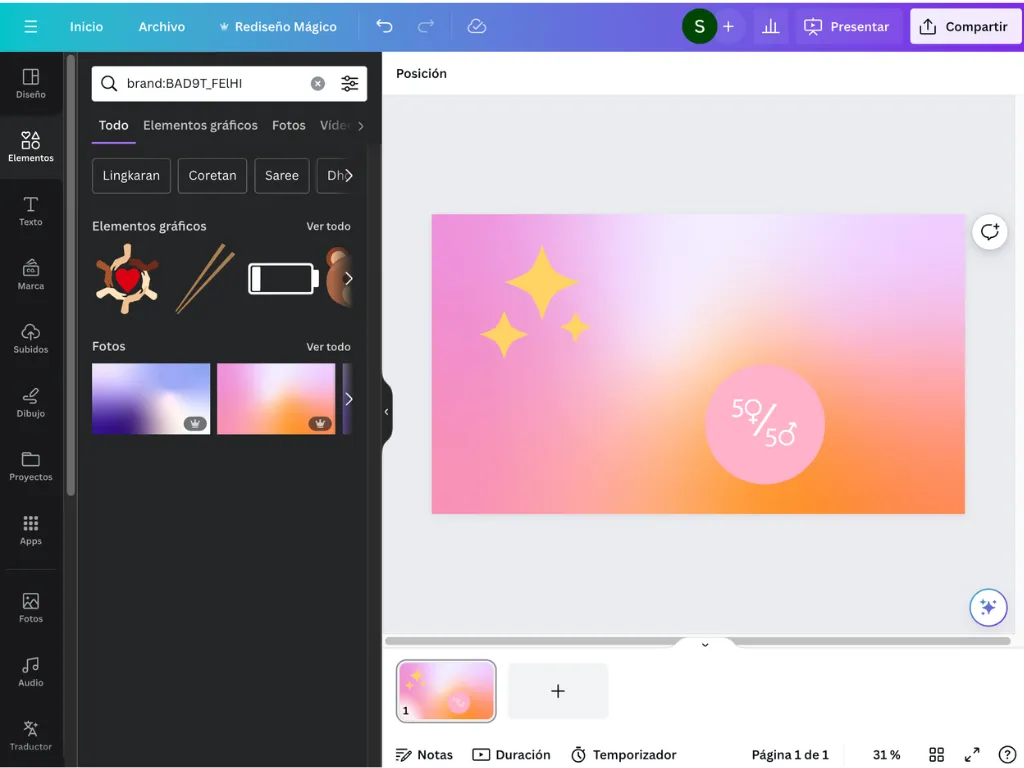
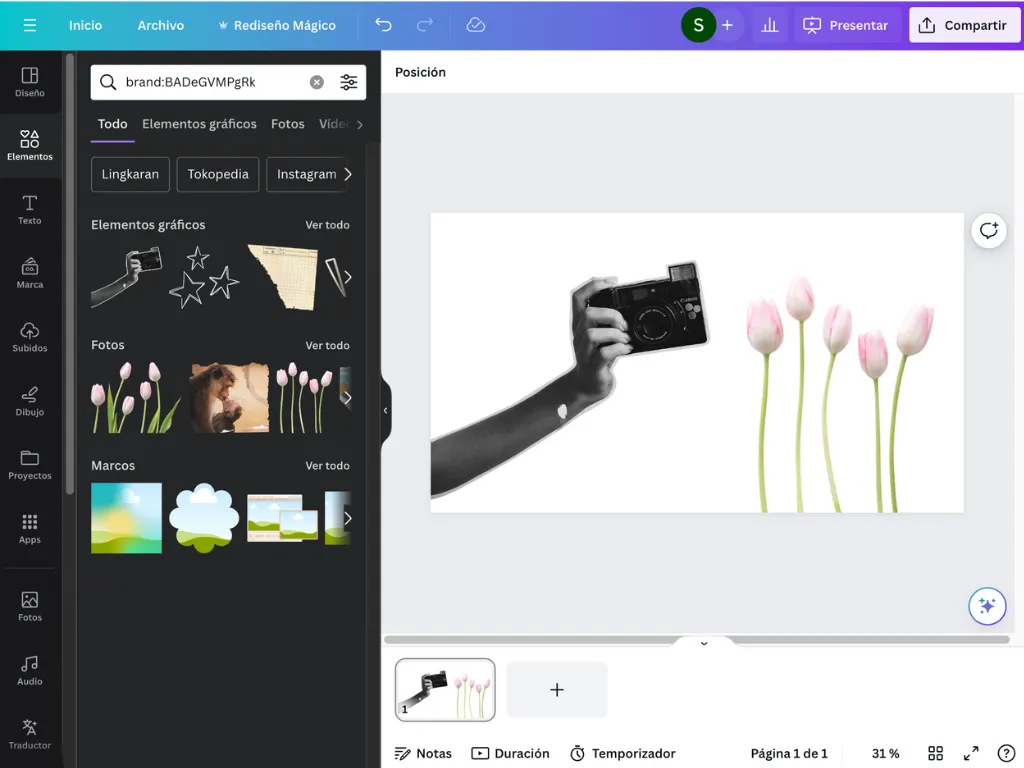
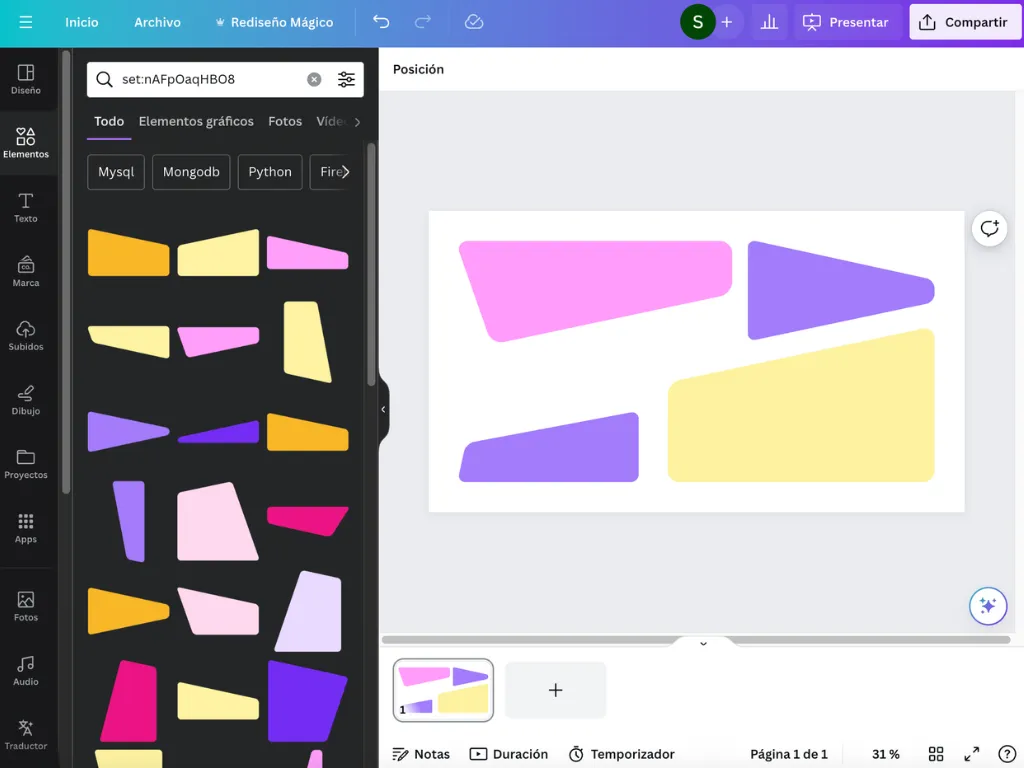
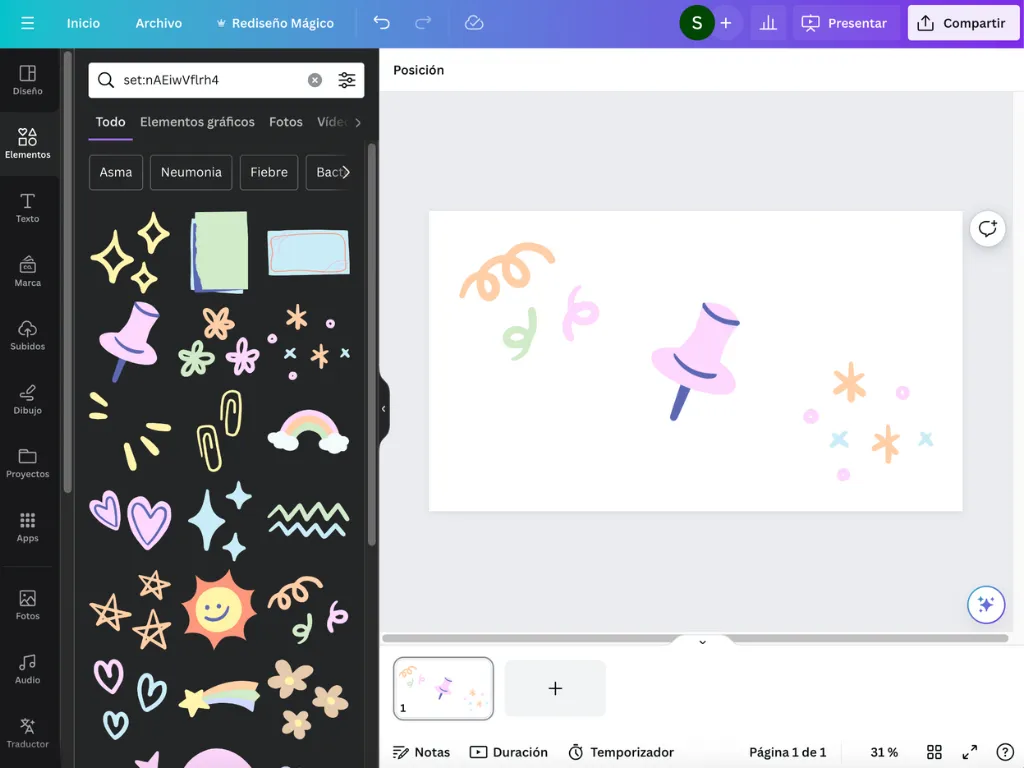
There are also “secret” brand codes for finding different packs of elements from the same creator or in the same style. Type the brand code into the search box. Here are a few of them:
- Canva – brand:BAAAAP7rQ8M
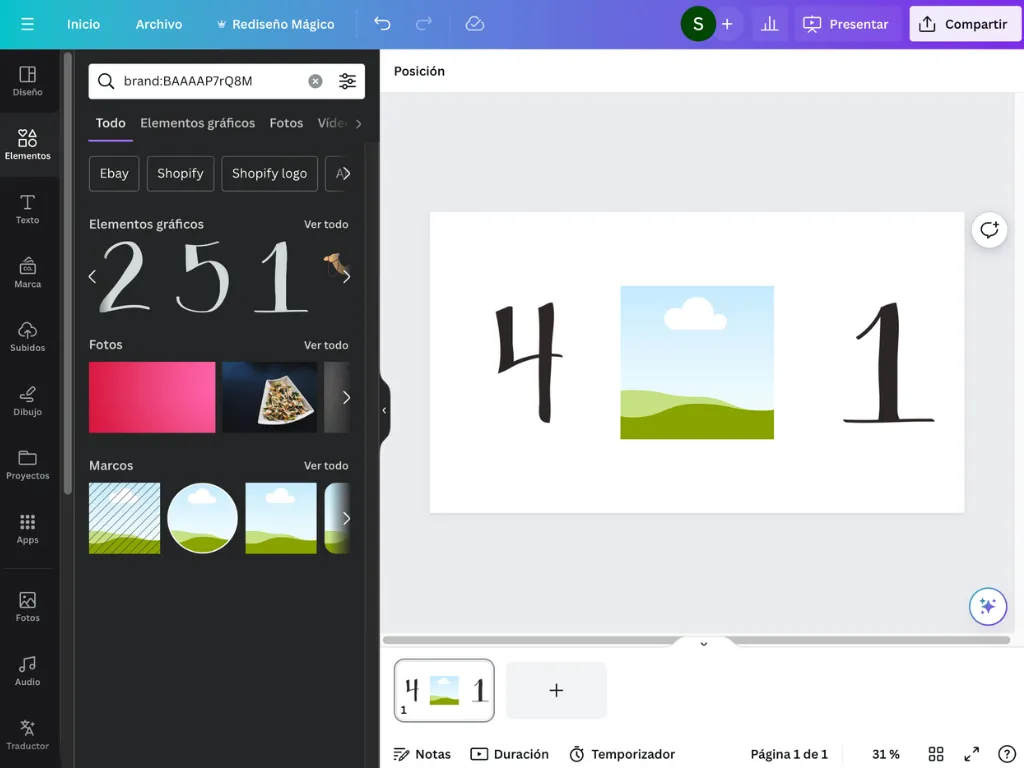
- Tnata2009 – brand:BABxFHE-lNo
- Blancalab studio – brand:BADryun21zg
- Musbila – brand:BAD9T_FElHI
- Sparklestroke – brand:BADeGVMPgRk
- set:nAFpOaqHBO8
- set:nAEiwVflrh4
7. Create or edit your videos in Canva
You can put a video together and edit it in a very practical way. Add your own photos or videos, or use its large stock library of images and video, but keep in mind that most of it is only available on Pro. It also includes basic transitions such as fades, dissolves, and wipes, as well as animations and visual effects for text. If you want, you can also use its wide range of templates so you do not spend time planning and creating every part of your video.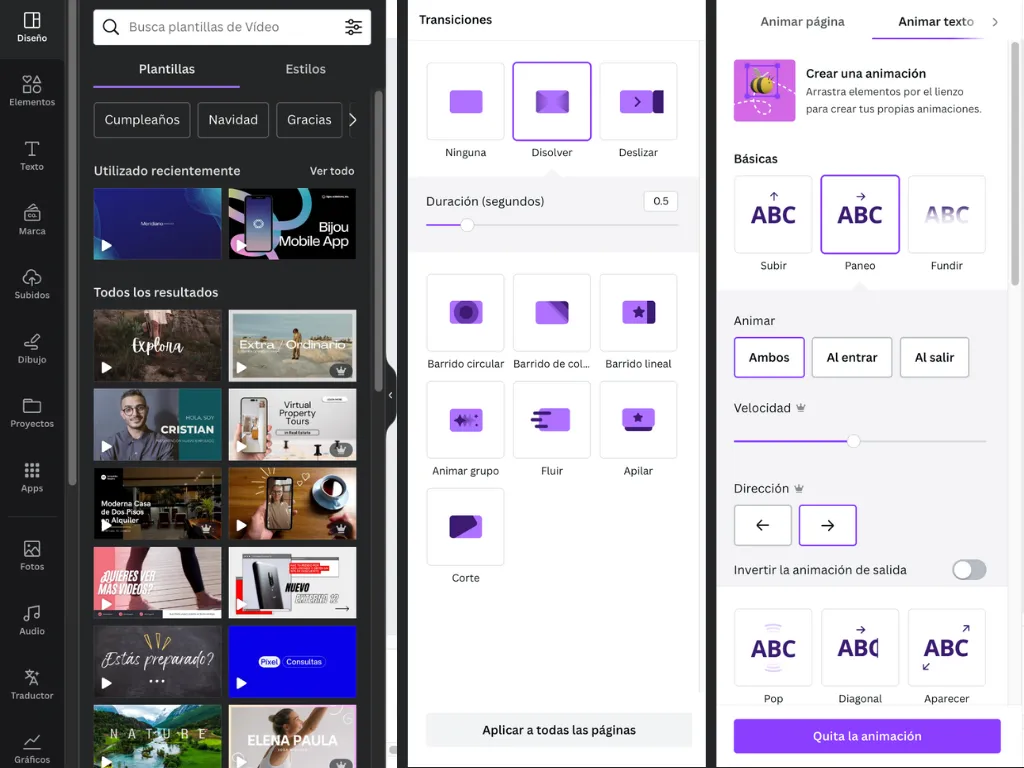
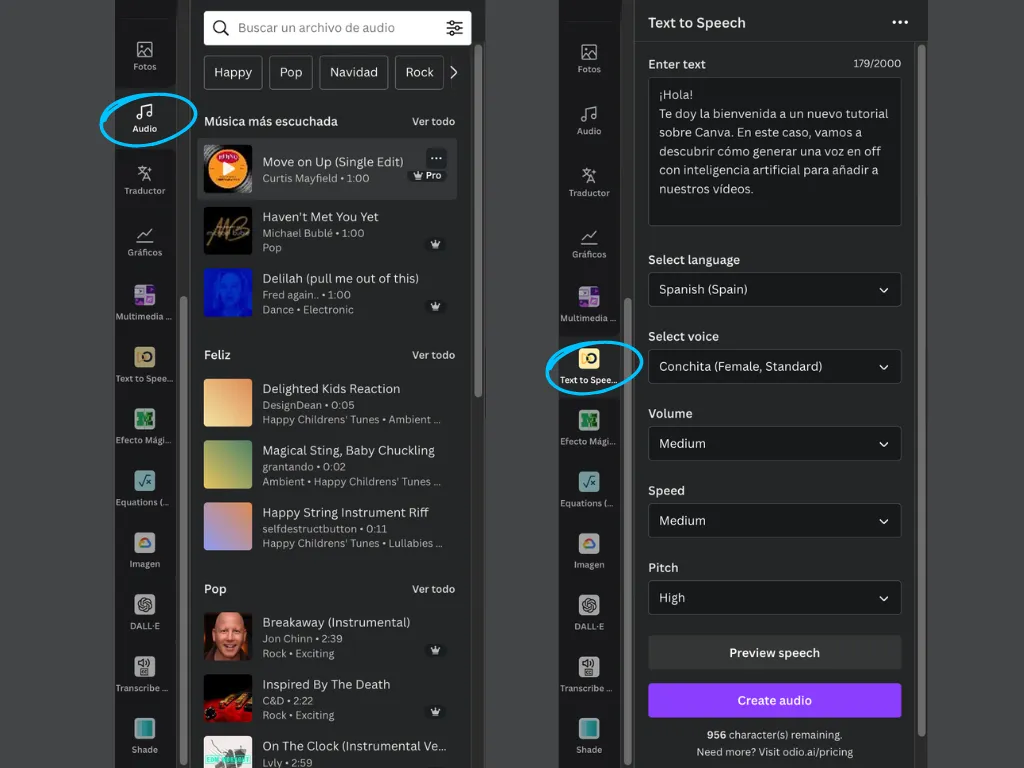
For audio, you can upload your own audio tracks or music, or even record your voice from the platform itself. You can then change the volume and add fade-ins and fade-outs.
If Canva’s own resources are not enough, you can turn to connected apps. For example, Pexels or Pixabay to add stock images and video, or Murf.ai or Text to Speech to generate your audio tracks with artificial intelligence.
8. Translate your designs in one click
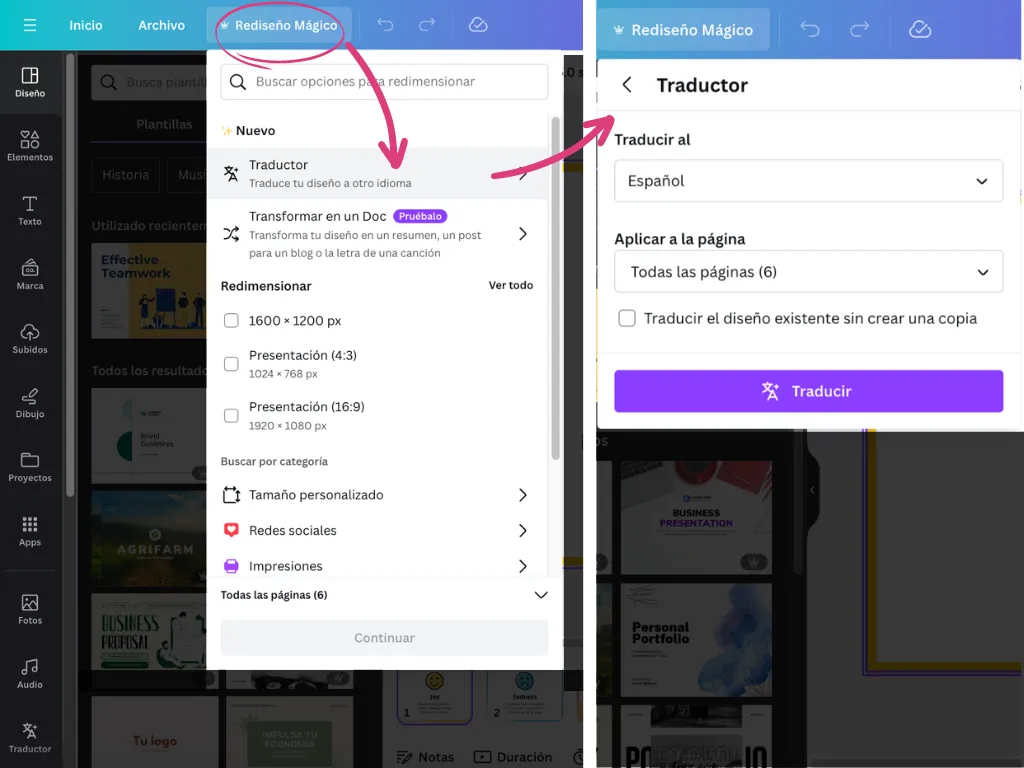
Now, if you want your designs in different languages, you will not need an external tool to translate your text and then paste it back into the design. Inside Canva you can do it in one click, keeping the style and the layout.You can translate individual text elements by right-clicking and selecting “Translate”. If you want it applied to a whole design, whether a presentation, a post, or a video, click Magic Switch in the menu bar above the editor. Then choose Translate and select the language you want from around 100 languages. You can also specify which pages you want the translation applied to. It is that simple.
Keep in mind that with Canva Free you have a limit of 50 pages to translate, and with Pro up to 500 pages a month.
9. Follow your favorite Canva Creators
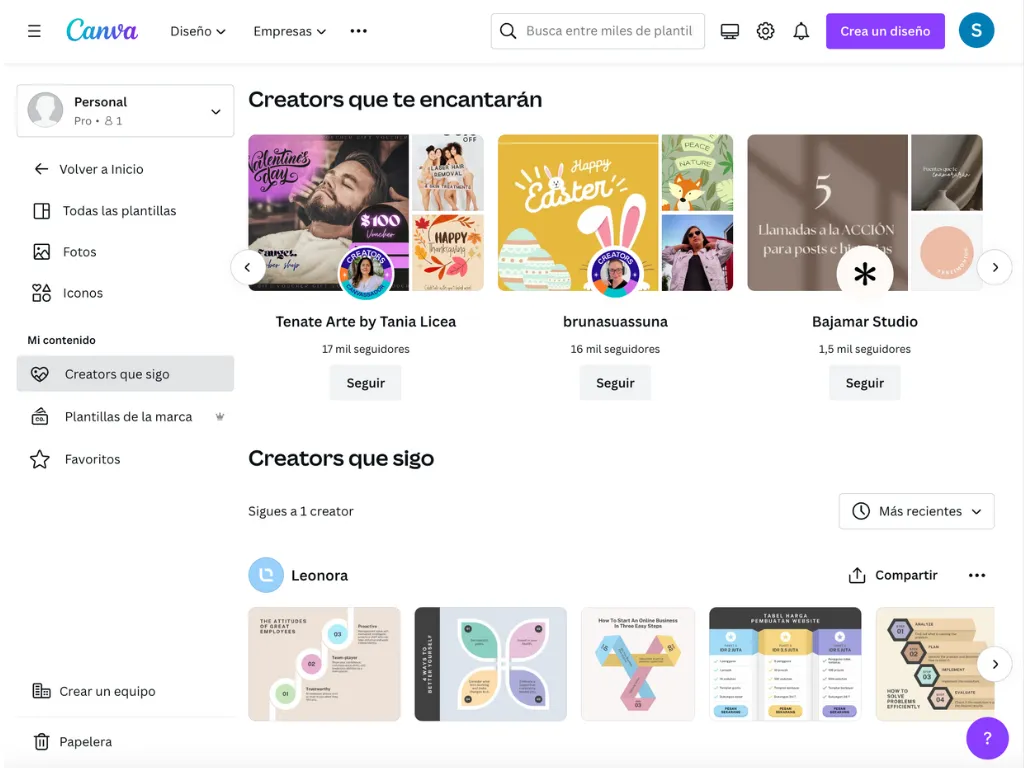
Canva offers a wide variety of ready-made templates, including presentations, videos, graphics, and more. These designs are made by Canva Creators, who have profiles on Canva that anyone with an account can follow to explore their work. When you follow them, you will see their designs first whenever you open Canva or search for templates. Each Canva Creator usually has a particular style that may fit what you are looking for, and following them is also very useful when you want inspiration.Discover the Canva Creators → https://www.canva.com/following
10. Optimize the presentation of your documents
Efficient design is not limited to presentations, illustrations, or videos. Even in dense documents full of text and data, it is crucial to keep a pleasant visual style. Canva makes that easier by offering a range of templates for creating documents, from reports and memos to CVs and invoices. It also helps the people who review those documents, making the information easier to read and understand.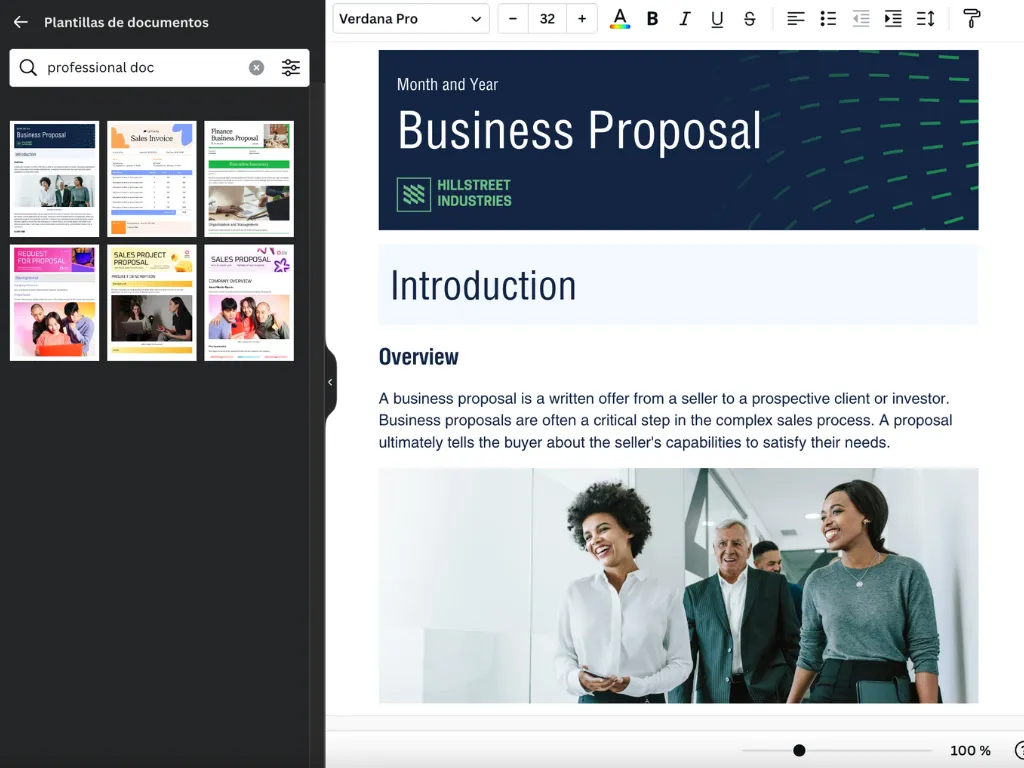
Want to keep discovering new Canva features and tricks? Here are some useful links that will help you go further with this tool and become a true professional.
And if you want to know more tools that can boost your graphic or audiovisual creations, we recommend these articles: