
Struggling with SCORM tracking in Moodle?



Here are a few pointers to help you understand how SCORM content works and how to use it effectively in your training.
Initial disclaimers
Disclaimer 1: This is part of a document we shared with our Moodle clients. We picked out the sections on SCORM tracking because I think they are useful: this is a topic that causes a lot of confusion.
Disclaimer 2: The document is based on Moodle installations from version 4.3 to 4.5 (the ones we currently maintain). We are not covering earlier options or features.
Disclaimer 3. SCORM is a system for connecting external content to an LMS. There are two models, 1.2 and 2004. Because 1.2 is usually the most widely used, that is the one we have focused on.
Disclaimer 4. If you notice a mistake, please tell us. On other Moodle instances, or with a different configuration, some of this information may not be entirely correct, or it may be incomplete.
Tools
Before we start, I want to add another general disclaimer. Each tool has its own parameters for generating and implementing SCORM.
This analysis focuses only on Articulate RISE, but every tool has its own quirks.
- iSpring works in a similar way to RISE, but it can send more statuses to the platform.
- isEazy sends progress and a fixed status.
- Snackson courses in SCORM use a fixed status and send continuous progress.
- CAE sends data (progress and completion) for each SCO.
SCORM vs SCO
Most tools generate the different screens and interactions inside a single learning object (SCO, Shareable Content Object). When they return a progress percentage, it refers to that set of content (one unit).
For example, RISE, iSpring, isEazy and Snackson generate a SCORM package with a single SCO by default (one progress value and one grade), but you can also create multi-SCO SCORM packages. CAE, for instance, usually generates SCORM packages with multiple SCOs (each package can contain more than one unit, and some contain several dozen).
With a multi-SCO package, tracking in Moodle gets a little more complicated, because you have to change a couple of settings. For now, we will focus on a single-SCO model.
Grade, progress and completion
Before we look at how to capture SCORM tracking in Moodle, it helps to separate grade (gradebook), activity completion and progress.
- Grade. This is the score the SCORM package returns to the platform, and Moodle stores it in the gradebook. It may be the progress, the result of a quiz, or another value that the tool and the person who built the SCORM package decide to send. RISE without a quiz, for example, returns a 0 or a 1, as we will see later.
- Progress. This is the equivalent of a bookmark: how far through the whole you are. At 40%? At 70%? Some tools return that bookmark as the grade. That is a valid choice; it is simply how they communicate the information. Strictly speaking, SCORM also stores the bookmark (the last piece of content viewed), but the learner never sees it.
- Finished or completed. The completed event fires when you have met the SCORM requirements. The difficulty is knowing what those requirements are, because they vary a lot and depend on the tool: reaching 100%, reaching a lower percentage, passing a final test, and so on.
Completion states in SCORM 1.2
SCORM 1.2 mainly uses two states to record learner progress: completed and incomplete.
When a learner opens a course for the first time, the course starts as incomplete. For it to change to completed, the content has to send a specific signal to the LMS. That usually happens when the learner views a set percentage of the content, or meets predefined criteria, such as finishing every slide or passing an assessment.
Besides these basic states, SCORM 1.2 also handles passed and failed for scores. That status works independently of completion.
A learner can have the course completed but failed if they viewed all the content and still did not reach the minimum score on the assessments.
Tracking in RISE
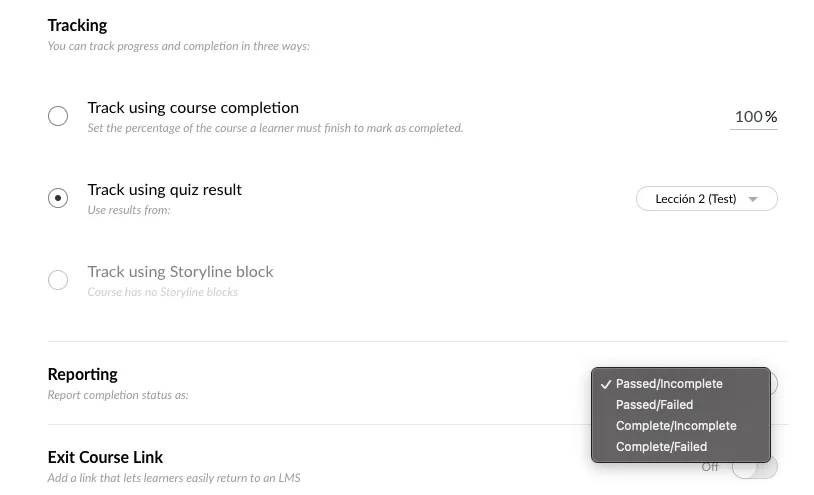
When you generate the SCORM package in Articulate RISE, three options affect tracking:
- Navigation (percentage of the course completed)
- Quiz result
- Storyline object
If you keep the default setting (Track using course completion), the pairs you can choose are Passed / Incomplete or Complete / Incomplete.
If you track the SCORM package from a quiz instead, RISE lets you select other combinations of states.
Tracking in Moodle
In Moodle, you mainly review SCORM completion through the grade and the completion status. You can see the grade in the gradebook, and you set the completion status on each activity.
Moodle can set a completion status for each activity. That is very useful for showing progress across activities, and also for restricting navigation: you can open certain content only if you have already completed the previous activity.
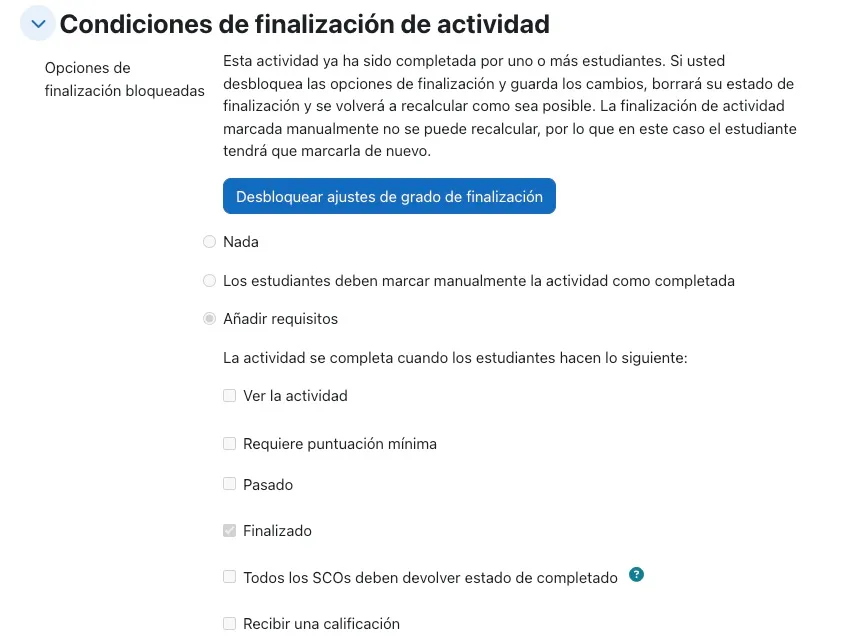
This is what the activity completion conditions look like in Moodle 4.5.
Right, but how do you set up RISE tracking in Moodle?
First, ask your provider which options they selected on export. If you do not know, you can still work it out, but that means reading the SCORM tracking reports (and that would be another article).
The course was exported with Track using course completion
If the course was generated with the default setting, it sends the value Passed. To capture activity tracking, tick the Passed box. When the learner reaches the end, the package sends a Passed event and you will see it in the course.
I see a 0 in the gradebook. I do not see a grade
If the SCORM package has no quiz, or it has one but you are not using it to return the grade, it only returns the completed status and sends no value to the gradebook.
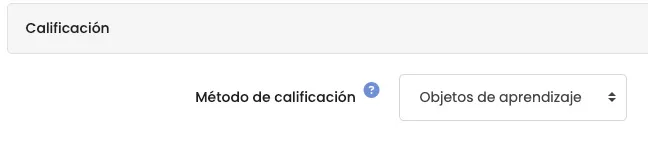
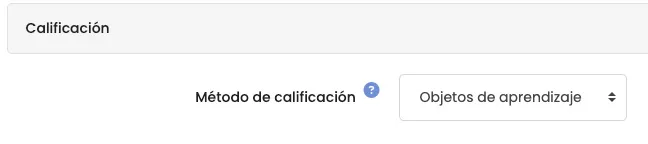
If you want to capture the completed status, change the way Moodle stores the grade and select Learning objects. It will then return a 1 (one completed SCO). You can use that value in a grade calculation in Moodle.
Can I see progress in the gradebook?
By default you cannot see progress, because it is not returned to the platform as such. To solve this for our clients, at Snackson we built Packet Rise.
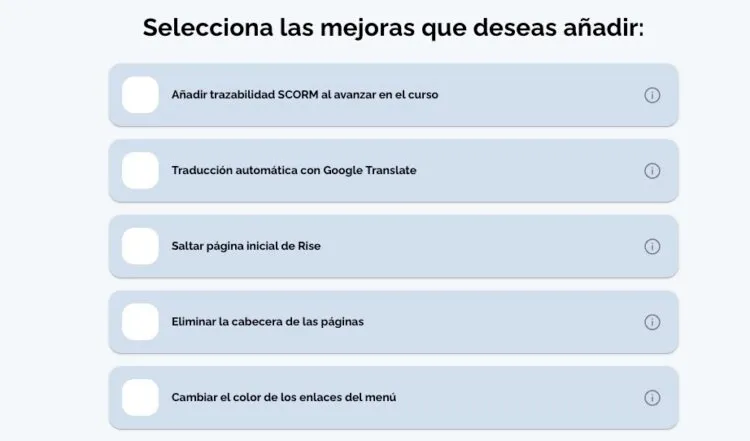
Packet RISE extends what RISE exports and gives it “superpowers”.
On the point that matters here, the first option lets you add tracking to RISE (so it returns the progress percentage). You can then use that value for calculations in the Moodle gradebook, or to restrict navigation.
The course was exported with a quiz, but with the completion option (the first tracking option).
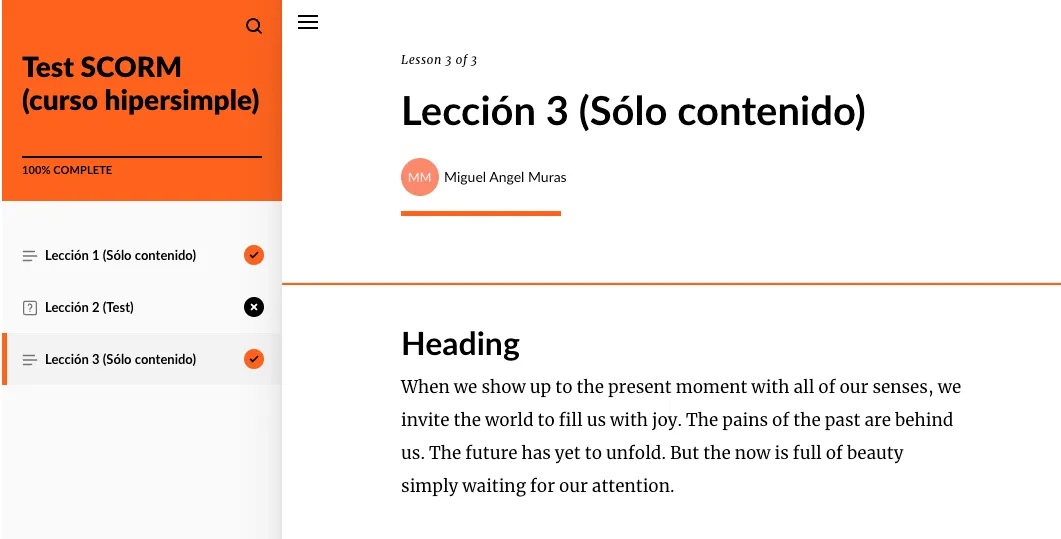
There is a curious edge case here. If you do not change the quiz cut-off score, the course will not send the COMPLETED event until the learner passes the quiz.
In the image below you can see that I completed the course (I also answered the quiz) but I did not pass it. It does not send a Passed event, so for Moodle the SCORM package is still pending completion. And the gradebook value is still empty.
The course was exported with a quiz set to return the quiz score
In this case, the final grade is the score obtained on the quiz. And if you have not changed the export settings, it keeps returning Incomplete until the quiz is passed.
And that is the end of this “short” tutorial on how SCORM works in RISE and how to use it in Moodle.
🙂