Until recently, many screens in a microcourse only displayed a piece of information, played a video or asked a question: the learner answered and moved on. In this article we tell you what changes when learners interact throughout the microcourse: they can turn, drag, tap, listen, explore, answer or give their view.
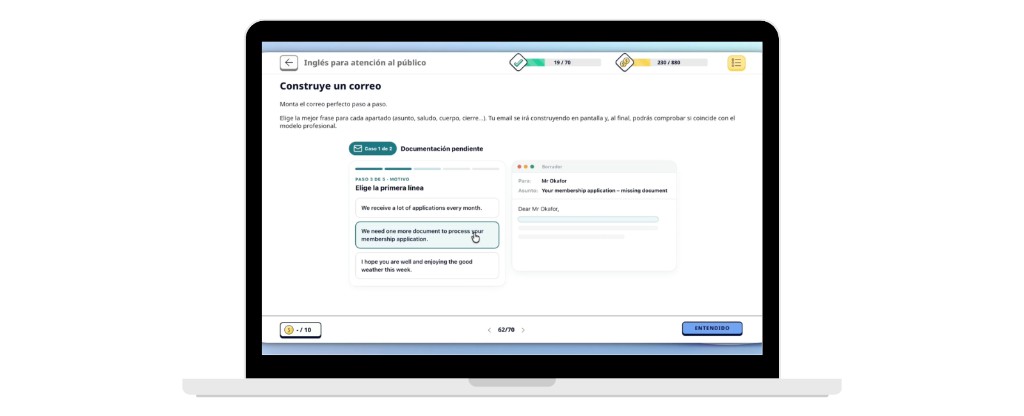
This is how interactives look inside a Snackson course.
What you can put in that window
With iframes inside the course, each idea arrives in the format that explains it best:
Turn the card to reveal the concept or the example.
Put the steps in the right order (for example, handling a complaint).
Tap each hotspot to discover information about the setting.
Listen, repeat and reinforce phrases or protocols.
Move through stages (onboarding, a process, a plan).
A short quiz to check what has been learned before moving on.
Collect feedback on the course or the module in one minute.
Immersive experiences: explore a space, play a mechanic or follow an animation that tells the idea.
The data travels with the course and can be used at different points.
Want to bring this into your courses?
If you already train with Snackson, or you are designing custom content, we can add interactives to your team’s path.
Let's talk. Tell us the topic and the learner profile, and we will suggest which interactives fit best.